
Working with sections
Every page of the manual is built from sections. This guide shows how to add, fill in and publish a section, and how to move it later, copy it to another page, hide it or delete it.
What you will have
The page gets a new section that visitors see on the site in the position you gave it.
Steps
Open the page in the panel
In the panel, click the page you want to add content to. The Content tab shows the list Sections on this page – every block the page is made of, in the order visitors see them.
Click Add new section
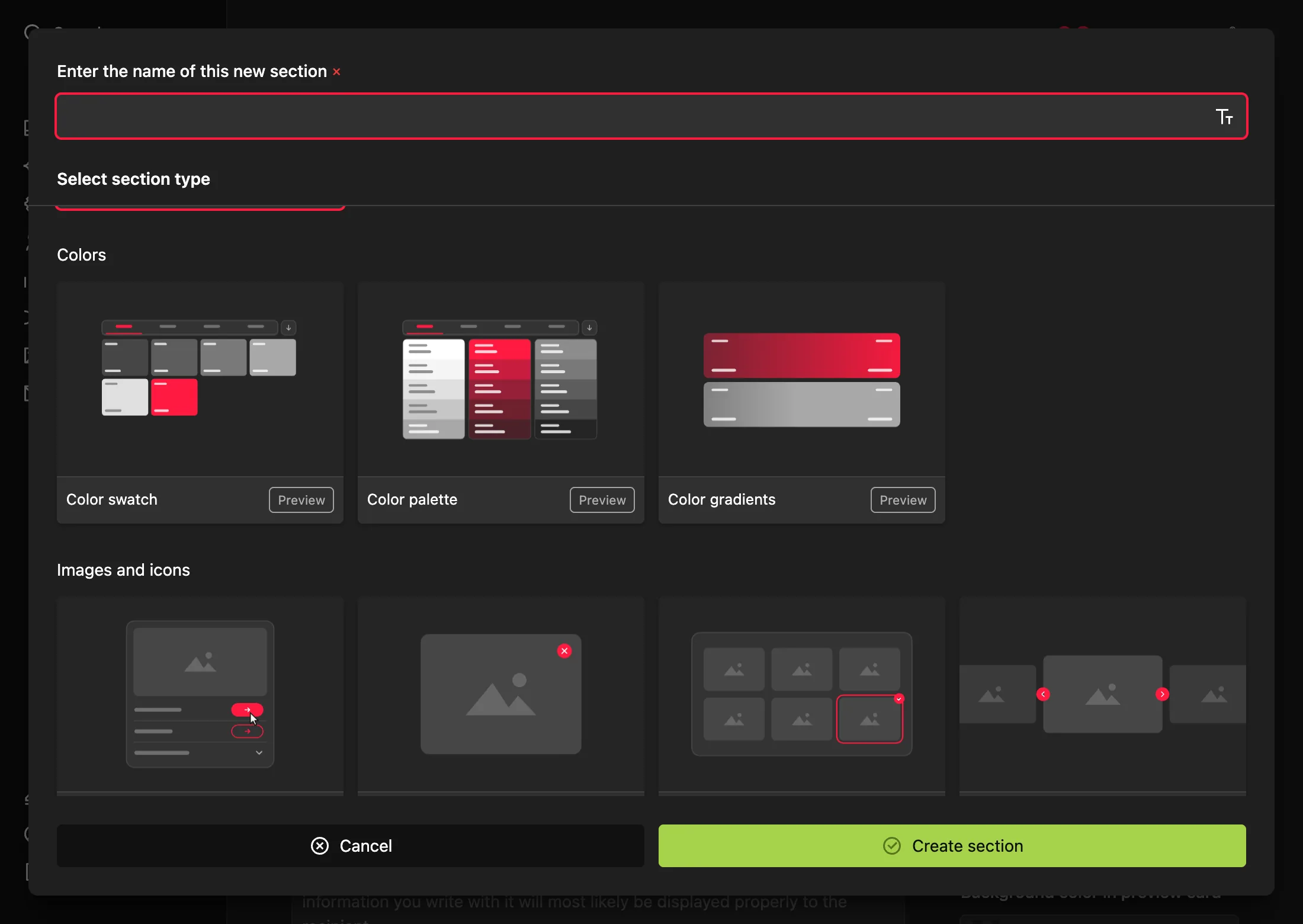
The green Add new section button is in the header of the Sections on this page list. It opens the Select section type dialog.
Choose the section type
Section types are grouped into Colors, Font, Images and icons, Audio, video and media, Text and data, Navigation and links and Special. Each tile plays a short animation of how the section looks on the site. The Preview button shows it at a larger size.
Name the section and create it
Type a name in Enter the name of this new section, for example “Logo clear space”, and click Create section. The name appears as the section heading on the site, and you can change it at any time.
Fill in the content and save
The section opens in its own form. Most sections have the same fields on the left: Description in the left column and Info box (highlighted text) with a choice of Note, Tip or Warning. On the right is the content specific to the type – images, files, colors or text.
Confirm your changes with Save. The What this section can do tab shows examples of what you can build with the section.
Switch the section to Active
A new section starts as a Draft – you can see it in the panel, but it does not appear on the site. Click the status button in the section header and choose Active (labelled “Visible on the page”).
How to tell it worked
Click View section in the section header. The page opens on the site with the new section in place. If you cannot see it, check that it is not still a Draft.
Editing an existing section
Click the section in the Sections on this page list. The arrows in the header take you to the previous or next section of the same page without returning to the list.
Changing the section order
Drag the section to a new place in the list. Alternatively, open the section menu (the three dots in the list or the cog icon in the header) and choose Change position.
Hiding a section without deleting it
Switch the section back to Draft. The content stays saved; it only disappears from the site and from the static export. This is useful for work in progress or for a rule that is temporarily on hold. The manual check flags drafts as “Draft section”.
Duplicating on the same page
Choose Duplicate in the section menu. The copy appears on the same page and is Active straight away – switch it to Draft if you are not ready to publish it.
Moving or copying to another page
- Move – the section leaves this page for the Target page you pick in the page tree.
- Move copy – a copy with the same name is created on the target page and the original stays where it is. Copy files too? decides whether the images and files uploaded to the section are copied as well. The copy is active on the target page straight away.
Deleting a section
Choose Delete in the section menu and confirm. Files you uploaded to the section are deleted with it.
Bulk changes
Sections are moved, copied and deleted one at a time – the section list has no multi-select. Inside a section, though, most lists (colors, downloadable files, buttons, cards) let you select several rows and delete them in one step.
Your AI agent can do this faster. A request such as “move every photo section from the Campaigns page to the Photography page” is something it handles for you – see What the agent can do.
Sections in two languages
A section exists in both languages of the manual at once, but the text is filled in for each language separately. The content sync and translation block in every section can import the content from the other language or have it translated – see Automatic translation.
Questions and answers
Why can’t I see my new section on the site?
A new section starts as a Draft. Switch it to Active in the section header.
Can I change the type of an existing section?
No, the type cannot be changed after creation. Create a new section of the type you need, move the content over, and delete the old one or switch it to Draft.
Why is a section type from another page missing?
The choice depends on the page type. For example, the Large gallery section is only available on a Large gallery page, and the Contrast checker only on a Colors page. See the section catalog.