
Lock the whole manual
This guide puts the entire manual behind one gate – a password, a company email, or both. Use it for an internal manual or one that is not finished yet. For the other ways to lock content, see the overview in How access works.
What you will have
Anyone who opens the manual's address sees only a sign-in screen and gets in after entering the password or a code from their email. As a signed-in editor, you keep working without restrictions.
Steps
Open Settings → Access Protection
In the panel's left menu, click Settings and switch to the Access Protection tab. These settings can be changed by the Admin role.
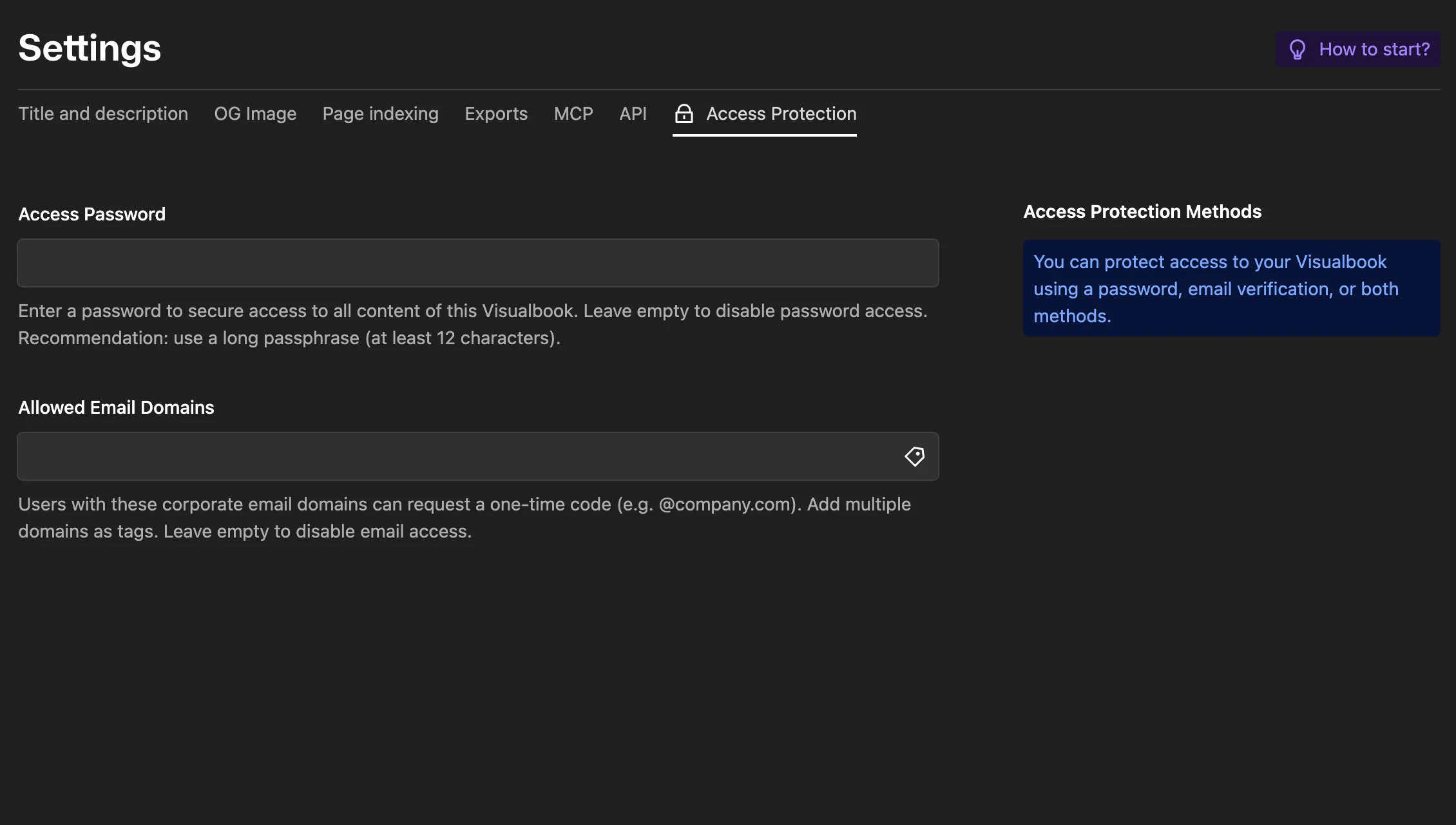
Settings → Access protection. Set a password
In Access Password, type a password of at least 12 characters, for example
blue-palette-for-the-team-2026. To let people in by email only, leave the field empty.Add company domains
In Allowed Email Domains, type a domain such as
company.comand confirm it. Add more domains the same way. If you only want a password, leave the field empty.Save your changes
Click Save. The lock applies immediately and to all languages of the manual.
How to tell it worked
Open the manual's address in a private browser window where you are not signed in to the panel. Instead of the home page you see the sign-in screen. Enter the password or an email and check that you get in.
What visitors see
The sign-in screen uses the header color or image from Design and shows the main logo above the box and the manual description inside it. If you set both a password and domains, the email field and an Unlock button come first. The password is behind the Unlock with password link.
After unlocking, visitors land on exactly the address they were heading to. Access lasts 2 hours in that browser, then they verify again.
What else the lock hides
robots.txtblocks the whole site for search engines andsitemap.xmlis empty.- The
llms.txtfile for AI tools is not available and no preview image appears when the link is shared. - The public MCP server switches off, even if it is enabled in Settings → MCP.
- The manual's images and files cannot be downloaded, not even through a direct address.
For details, see Locked content, search and AI.
Signed-in editors need no password
Anyone signed in to the panel sees the manual without the sign-in screen, so you can keep editing and reviewing it, including directly on the site. Individually locked pages, however, have to be unlocked by editors just like by visitors.
Changing or turning off the lock
To turn the lock off, clear both fields and save. If you only change the password or the list of domains, everyone who was unlocked has to verify again.
Things to watch out for
Questions and answers
Why can't a colleague at a branch office with name@branch.company.com get in?
Domains are matched exactly. Add branch.company.com to Allowed Email Domains as well.
A freelancer uses a Gmail address. How do I let them in?
Public mailboxes cannot be allowed. Fill in Access Password as well and send it to them.