
Site settings
Settings for the whole manual live in two places in the panel: Settings and the Overview. This page shows what is where and links to the detailed guides.
Settings (cog icon in the menu)
| Tab | What you set there | Details |
|---|---|---|
| Title and description | Brand Name, Brand Manual Description, SEO Website Description (Description) and the Search Engine Preview | Below on this page |
| OG Image | The preview image used when a link is shared | SEO and link preview |
| Page indexing | Block indexing for the whole site or for selected pages | SEO and link preview |
| Exports | Static export and export for AI | Static export |
| MCP | The public MCP server and the connection card on the home page | What the AI connector is |
| API | Your own key for Automatic Translation with DeepL | Automatic translation |
| Access Protection | Access Password and Allowed Email Domains for the whole manual | Lock the whole manual |
Brand name and manual description
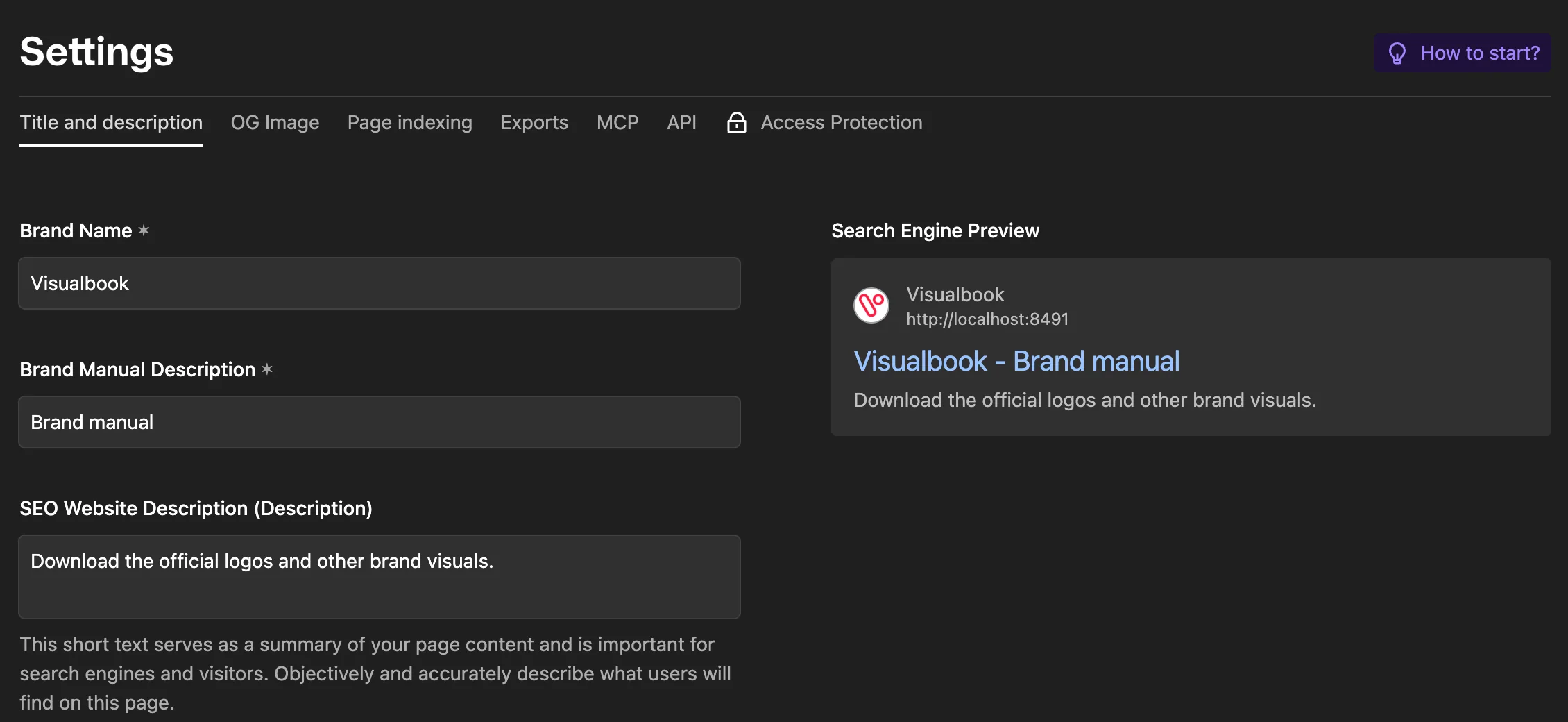
- Brand Name (required, for example “Novak Bakery”) is the same in both languages. It appears in the browser tab title, e.g. “Logos – Novak Bakery”.
- Brand Manual Description (required, for example “Brand manual”) is the main heading on the home page and is translated into the second language.
- SEO Website Description (Description) is a short summary for search engines. The right column previews the search result.
Overview → Structure and layout
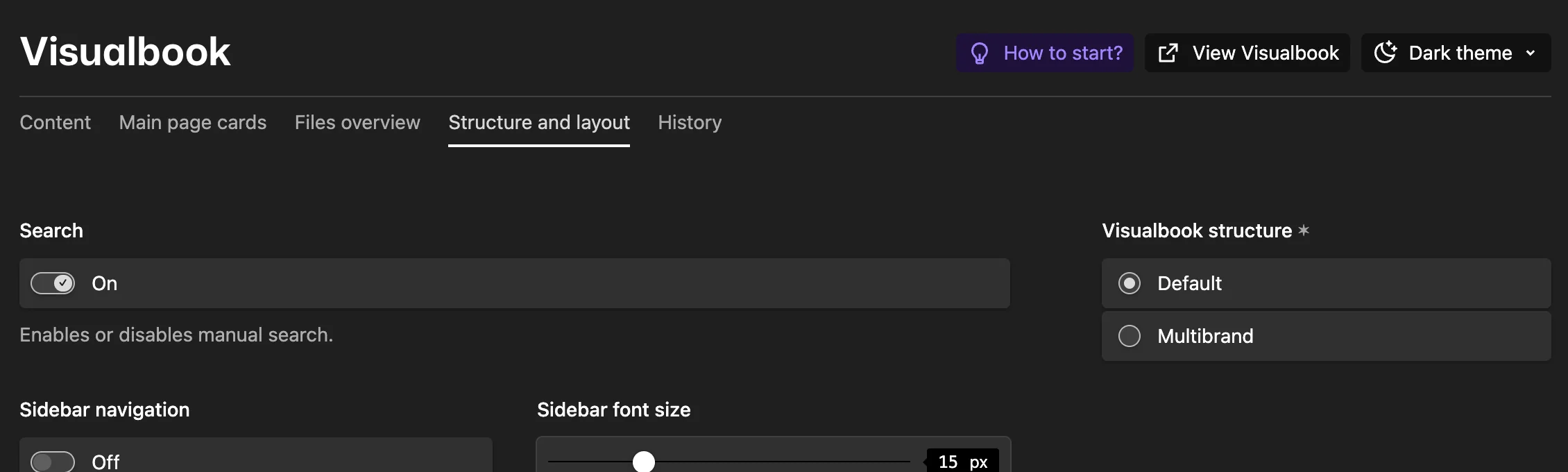
| Field | What it does |
|---|---|
| Search | Turns the manual’s search on or off. See Search in the manual. |
| Sidebar navigation | Shows side navigation on every page, listing the pages that have a card. When it is on, the “On this page” list is hidden. |
| Sidebar font size | 14–18 px, default 16 px. |
| Visualbook structure | Default for one brand, Multibrand for several brands. See Multiple brands in one manual. |
Overview → Main page cards
Besides the cards themselves, this tab has a required Contact email. Visitors use it when they need help with the manual or forget the password, so enter an address someone reads, such as brand@company.com. This is also where you switch on the Recent updates card – see Home page cards.
Who can change what
- Settings, Design and the Overview are edited by the Admin role. The Multibrand editor has neither Settings nor Design in the menu.
- The manual’s languages are changed by Visualbook support – see Add or change a language.
- The storage limit, the number of users, the author link in the footer and write access through the AI connector are also set by support – see Limits and quotas.