
Panel tour
The panel has a menu on the left and, in the middle, the screen you are editing. This page explains what each menu item is for, what’s in the screen header and how saving works.
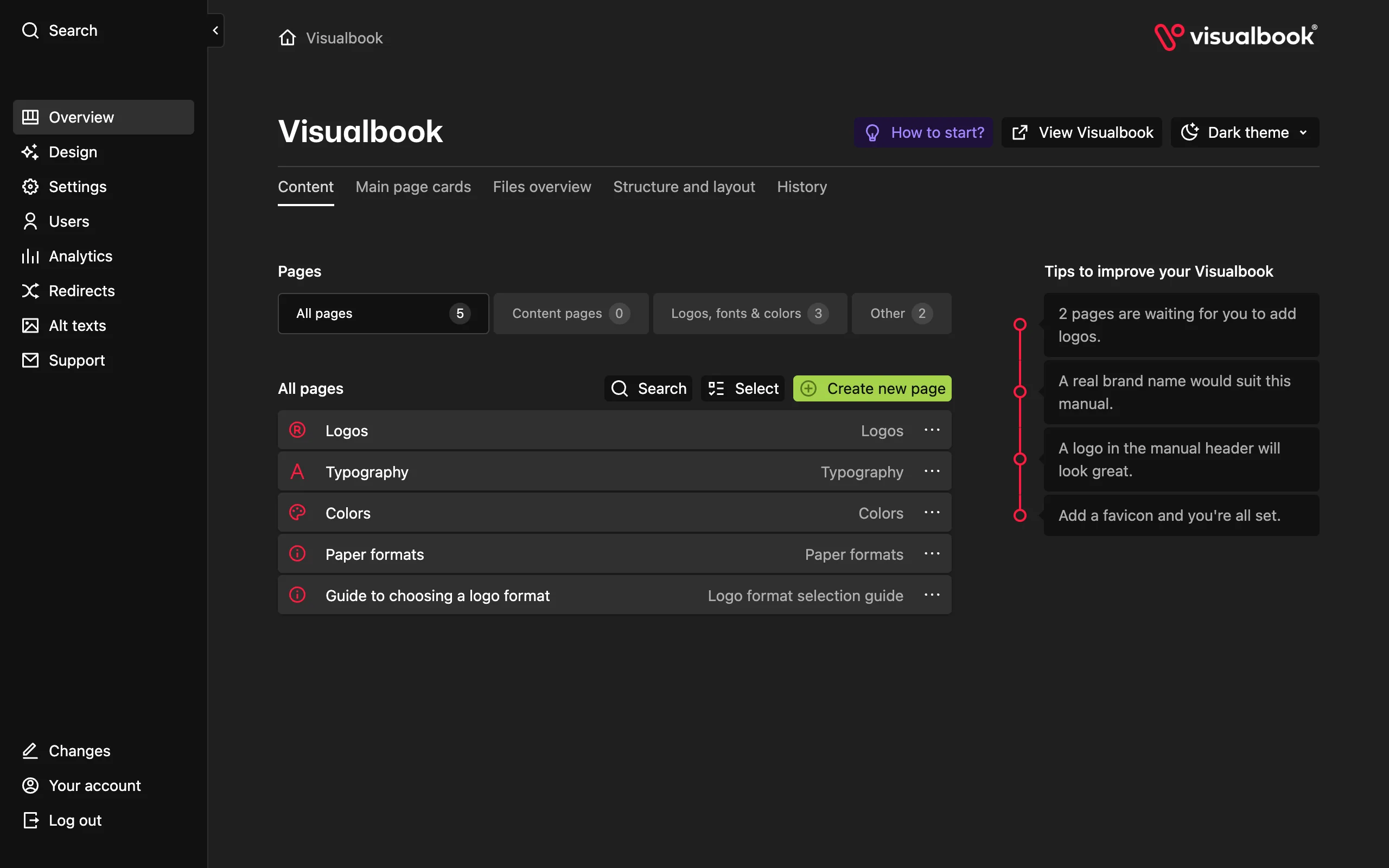 123456
- Menu: Overview, Design, Settings, Users, Analytics and more
- Header buttons: How to start?, View Visualbook, theme and language
- Overview tabs: Content, Main page cards, Files overview…
- Page list with the Create new page button
- Tips to improve your Visualbook
- Changes, Your account and Log out
The menu on the left
| Item | What it’s for |
|---|---|
| Overview | The manual’s content: pages, home page cards, files, structure and change history |
| Design | The look of the whole manual – colors, fonts, corner radius, home page background, header logo, favicon |
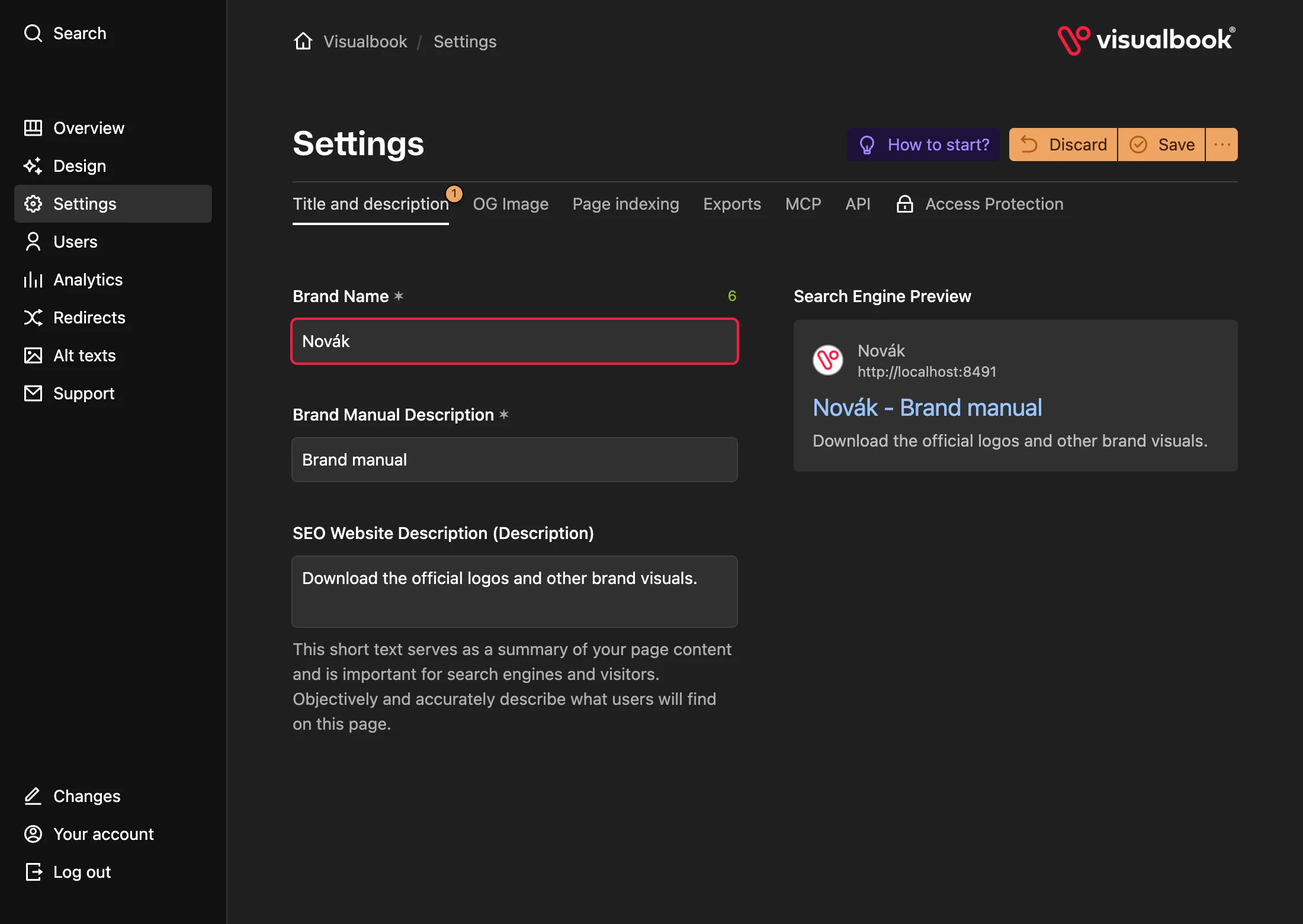
| Settings | Brand name, search engine preview, OG image, indexing, MCP, DeepL, access protection, exports |
| Users | Accounts of the people who can use the panel |
| Analytics | Manual visits and file downloads |
| Redirects | Redirecting old addresses to new ones |
| Alt texts | Image descriptions for screen readers and search engines |
| Support | Opens a new email to Visualbook support |
Below the menu you’ll find Your account, Changes (an overview of edits you haven’t saved yet) and Log out.
What you see in the menu depends on your role. An Admin sees every item in the table. A Multibrand editor doesn’t see Design, Settings, Users, Analytics or Redirects, and in Overview only works with the brands an Admin has assigned to them. See Users and roles.
Buttons in the screen header
Each screen has buttons in the top right. Which ones appear depends on the screen.
- How to start? – a guide to the screen you have open.
- View Visualbook, View page or View section – opens the result on the website in a new tab.
- Light theme or Dark theme (with a sun or moon) – switches the panel between light and dark; it doesn’t affect the manual.
- The language switcher – sets which language version of the content you are editing. It only appears when the manual has two languages.
- On pages, there is also a page type badge (for example Logos) and a menu with more actions. A single logo also shows its status (Active or Draft).
How saving works
As soon as you change something on a screen, Discard and Save buttons appear at the top. Until you save, only you see the change – manual visitors see it once you click Save. Unsaved edits from all screens are listed under Changes in the bottom left.
Overview tabs
| Tab | What you’ll find |
|---|---|
| Content | The Pages list, split into All pages, Content pages, Logos, fonts & colors and Other. Create new page adds a new one. The right-hand column shows Tips to improve your Visualbook. |
| Main page cards | The home page’s Large cards and Small cards, the Contact email and the Recent updates card. See Home page cards. |
| Files overview | Every file in one place, plus storage usage. A dot next to a file shows whether it’s used anywhere. See Files and storage. |
| Structure and layout | Search, Sidebar navigation, Sidebar font size and Visualbook structure (Default or Multibrand). |
| History | An overview of recent changes to pages. |
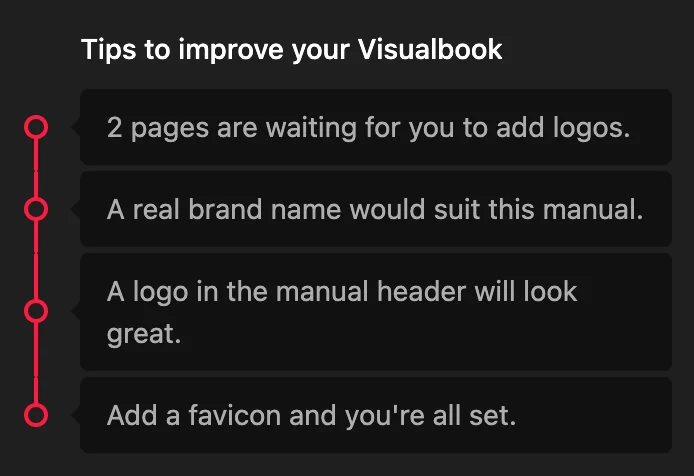
Tips to improve your Visualbook
The right-hand column of Overview flags things worth checking:
- missing or default card labels,
- untranslated text and page addresses,
- empty pages and sections,
- sections left as drafts,
- logos without an uploaded SVG.
Each link takes you straight to a list of the places that need fixing.
Searching the panel
The panel search finds pages, sections and files. By default it searches titles and addresses. To search the full text of pages, start your query with >, for example > clear space.
A page and its sections
Click a page in Overview to open its screen. It has its own tabs – usually Content and Password, and for a single logo also Logo usage rules. The right-hand column shows This page card preview and the card settings. Open a section by clicking it in the page’s section list. See Working with sections.