
Invite an editor
Add a colleague to the panel and choose their role. Visualbook then sends them a welcome email with a sign-in link.
What you will have
Your colleague has their own account, has received a welcome email and can sign in to the panel.
Steps
Open the Users screen
In the panel's left menu, click Users. At the top you see how many accounts you have and how many your edition allows, for example “User count: 2 of 5 available”. Users are added by the Admin role.
Click Add a new user
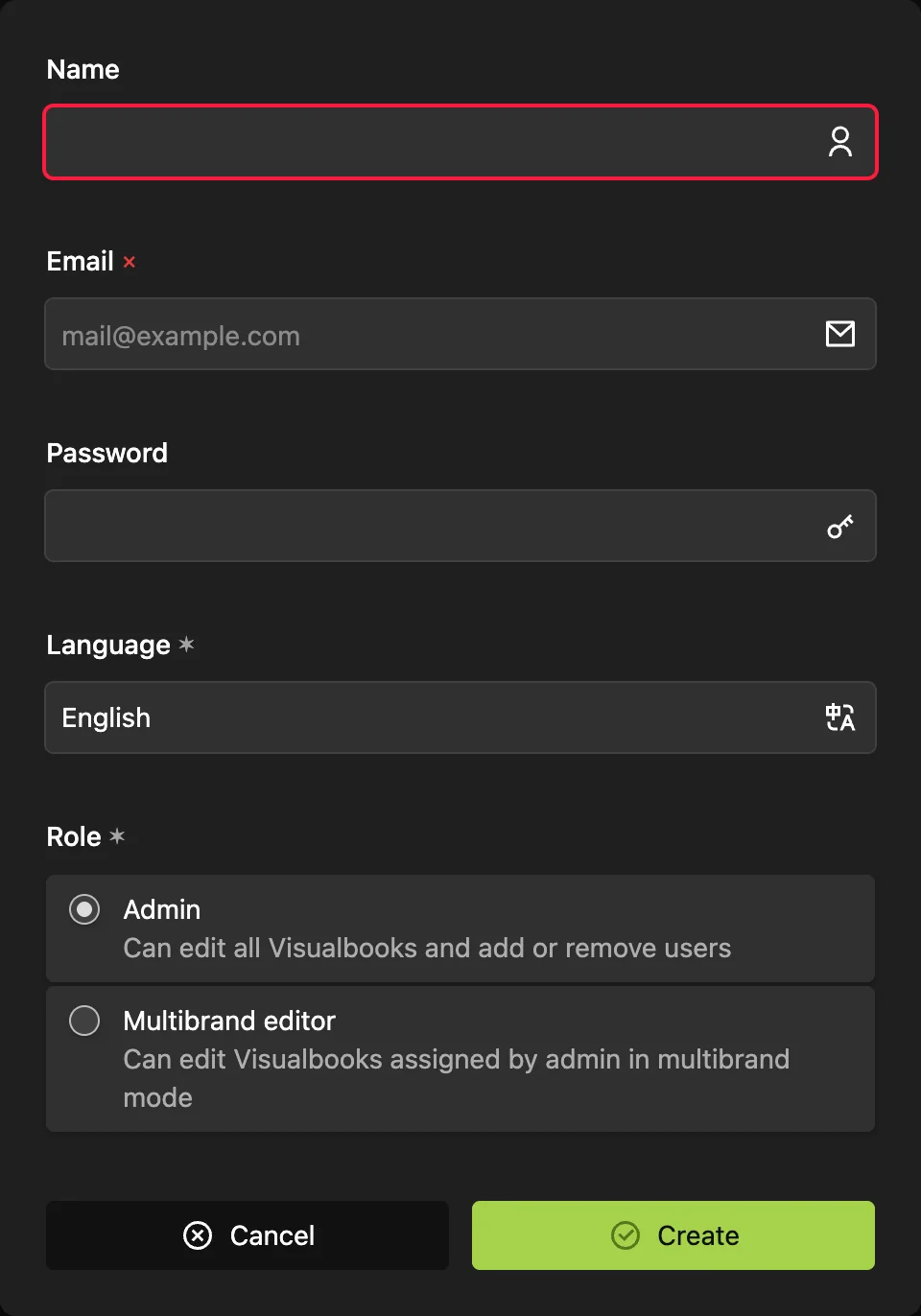
The form for the new account opens.
Fill in the name and email
The Name appears in the panel and in the change history. The Email is the sign-in address – the welcome email and sign-in codes go there.
Enter a password or leave it blank
The Password is optional. Without one, your colleague signs in with a code sent by email and sets a password themselves. If you enter one (at least 8 characters), it is included in the welcome email.
Choose the language and role
Language sets the language of the panel and of the welcome email. Under Role, pick Admin – or Multibrand editor in a multibrand manual.
Click Create
The account is created and Visualbook sends your colleague an email with the subject “Welcome to Visualbook” followed by the brand name.
How to tell it worked
Your colleague appears in the Users list and the account count at the top goes up. Ask them to sign in. If they cannot find the welcome email, they should check their spam folder.
Assign brands to a Multibrand editor
After creating the account, open the Multibrand editor's account and select their brands in Visualbooks and pages this user can edit. Until a brand is assigned, they only see their own account after signing in. Only an Admin can change this field – the editor cannot. See Multiple brands in one manual.
What the welcome email contains
- the heading “Your account has been added to Visualbook” and the manual's address,
- a Sign in button that leads to the panel sign-in,
- the password, if you entered one, with a recommendation to change it after the first sign-in.
What your colleague sees after signing in is described in First sign-in and the welcome guide.
Change email or role, or delete a user
Open the account under Users and use the account settings menu:
- Change email – when your colleague moves to a new address. They receive “Your account email has been updated” at the new one.
- Change role – for example from Multibrand editor to Admin.
- Delete this user – when a colleague leaves. This frees a seat in your limit.
Questions and answers
The panel says the maximum number of users has been reached. What now?
Your edition includes a limited number of users. Delete an unused account or buy more editors – see Limits and quotas.
I cannot see the Technical Support account in the list. Is that a bug?
No. Visualbook's service account is hidden from the list and does not take a seat in your limit.