
Password access
This page covers password locks: where to set one for the manual, a page or a file, how to choose and share the password, and what visitors see. For the other ways to lock content, see the overview in How access works.
Where to set a password
| What you protect | Panel field | Where to find it |
|---|---|---|
| The whole manual | Access Password | Settings → Access Protection |
| A page and the pages below it | Password to access this page | the page's Password tab |
| A file in a Files for download section or a Download file button | Protect file with a password | the file row or the button settings |
| A link on a button or a card, including an External Link card | Protect link with a password | the link settings |
| A recording in an Audio section | File password | the recording row, after turning on Allow download |
Each password only applies where it is set. A page password does not unlock the whole manual and vice versa.
Choosing a password
A password must be at least 12 characters long. The panel will not save a shorter one and shows “Password is too short (at least 12 characters).”
- Use a passphrase of several words, such as
green-printshop-autumn-26. It is easy to dictate and to type. - Give each group of people its own password – one for partners, another for the print shop.
- Do not reuse the password you sign in to the panel with.
What visitors see
- The whole manual – a sign-in screen in the manual's colors with the brand description, a Password field and an Unlock button. After unlocking, the address the visitor originally wanted opens.
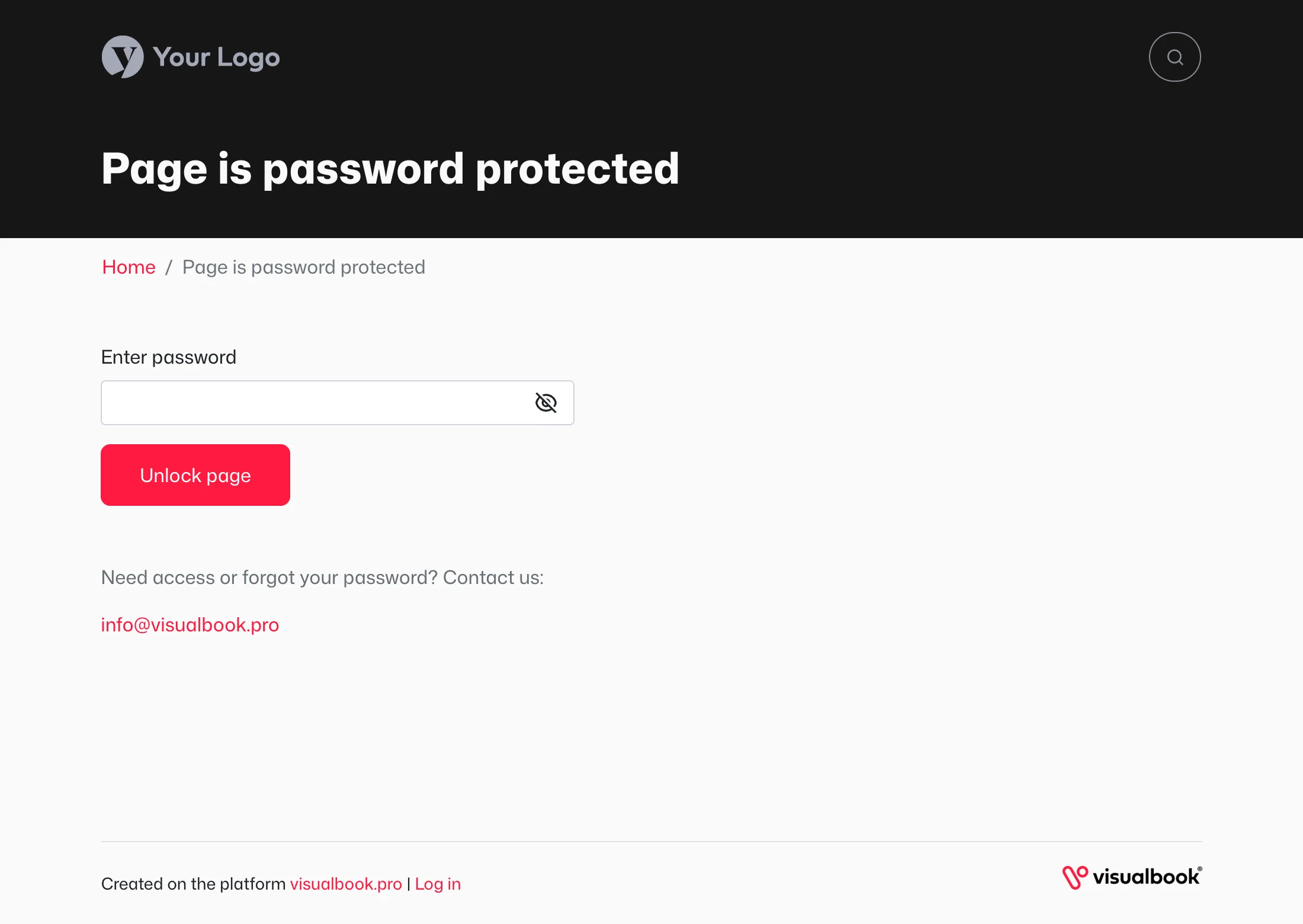
- A page – instead of the content, an Enter password field, an Unlock page button and a help line with a contact below it.
- A file or a link – after clicking the button, a dialog titled Enter password to download the file (or Enter password to open the link for links) with a Download or Open button.
Visitors can check what they typed with Show password. All texts appear in the language of the page the visitor is on.
Sharing and changing the password
A password is shared: anyone it gets forwarded to has it. Send it through a different channel than the link – the link by email, for example, and the password by chat or phone.
When you change and save the password, everyone who unlocked the manual or the page has to verify again on their next visit. For files, the new password applies from the very next download. Changing the password is therefore the quickest way to revoke access.
Protection against guessing
For the whole manual and for pages, five wrong passwords from one connection block further attempts for 15 minutes. The visitor sees “Too many attempts. Please try again in 15 minutes.”
Help for people without the password
Tell visitors where to get the password, for example “The password is available from brand@company.com.” The help field is:
- for a page: Custom help text below the “Unlock page” button,
- for a file: Help text in the password dialog for this file.
If you leave the field empty, visitors see “Need access or forgot your password? Contact us:” followed by the address from the Contact email field. You will find that field on the panel's main page, on the Main page cards tab.