
First sign-in and the welcome guide
This page shows how to sign in to the panel for the first time – with a password or an email code – and how to start the “How to start?” guide that walks you through the panel.
Steps
Find the email with your access
Access to a new Visualbook is sent to the email address you entered in the configurator. When an Admin adds you to an existing manual, you get an email with the subject Welcome to Visualbook followed by the brand name. It contains a Sign in link and – if the Admin set a password for you – a line Your login password.
Open the panel sign-in page
Click the link in the email, or add
/panelto the manual’s address, for exampleyourbrand.visualbook.pro/panel. There is also a Log in link in the footer of every manual page. Don’t know the address? Look it up in the Login portal.Sign in with a password or a code
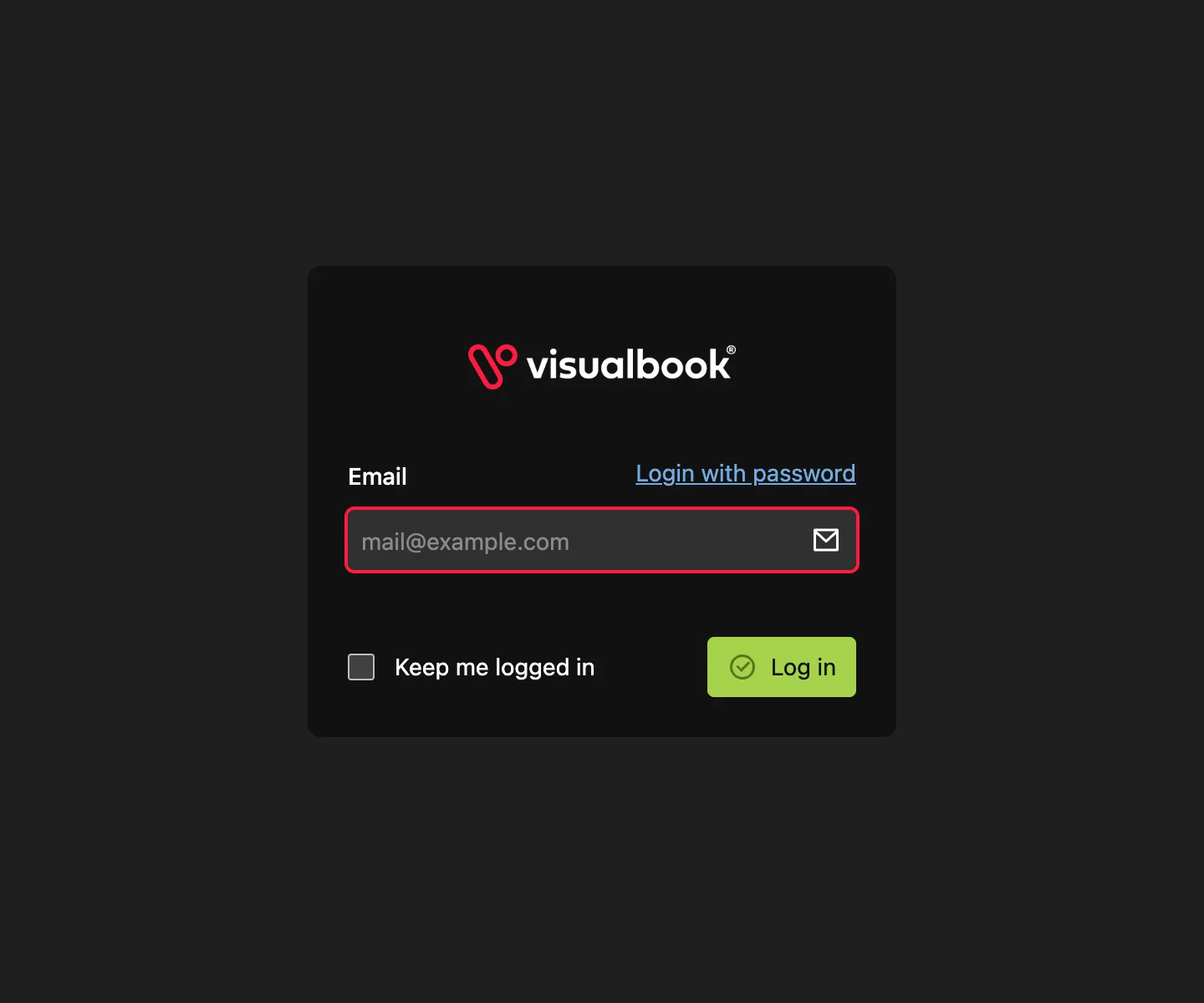
Enter your email and Password and click Log in. If you don’t have a password, click Login via email – a six-digit Login code is sent to your email and is valid for 5 minutes. On your own computer you can tick Keep me logged in.
Start the “How to start?” guide
After signing in, you land on the Overview screen. Click How to start? in the top right. The guide points out the main parts of the panel one by one – Overview, Design, Settings, Users and Your account – and explains what you see on the screen. Use the arrows to move forward and back.
Check your account
Open Your account in the bottom left. Here you can change your name, email, password and the panel language. If you signed in with a code, set a password here – signing in will be quicker next time.
How to tell it worked
You are on the Overview screen and the menu on the left shows items such as Overview, Design and Settings. Carry on with the Panel tour or go straight to the first logo manual tutorial.
Other screens have guides too
How to start? isn’t only on Overview. Design, Settings, Users and the individual page types – Logos, a single logo, Fonts, Colors, content page, gallery, page group, portal and custom online tool – each have their own guide. It always runs for the screen you are on.
What if the code doesn’t arrive
- Check your spam folder.
- The code is valid for 5 minutes. Once it expires, request a new one on the sign-in screen.
- The email has to match your panel account exactly. A code is only sent to an address that has an account.
- Still nothing? Contact an Admin of your manual or Visualbook support – see Forgotten password and account recovery.
The panel language isn’t the manual language
The panel is available in six languages and every user picks theirs in Your account. This is separate from the language of the manual’s content. If the manual has two languages, you switch between them with the language switcher in the screen header. See Manual languages.