
SEO and link preview
Set how the manual appears in Google results and what the preview looks like when someone shares a link in a chat or on social media. You also decide which pages search engines should not index.
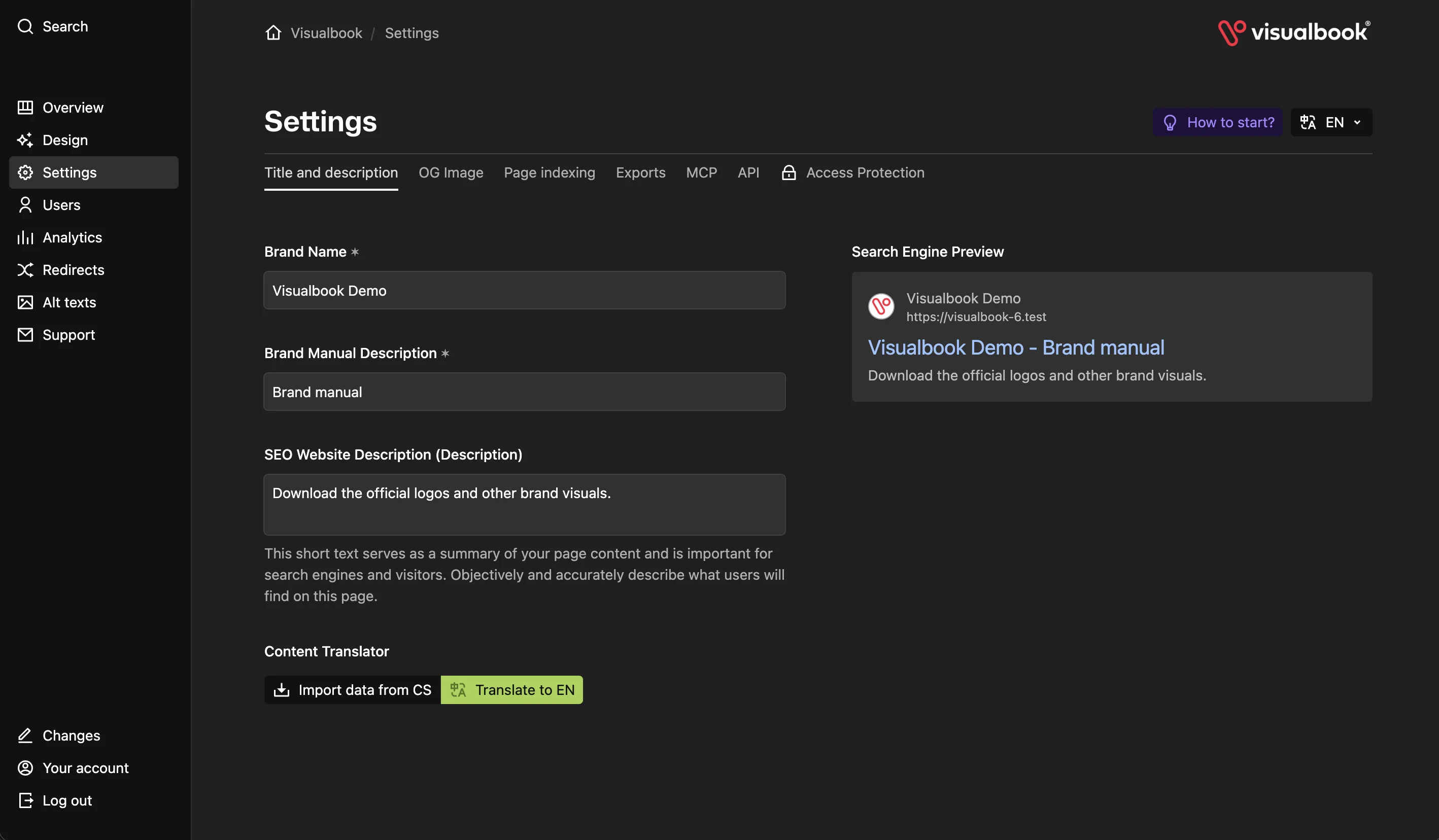
What you will have
The manual has a clear title and description in search results, and a shared link shows an image with the logo and brand name.
Steps
Open Settings → Title and description
In the panel, open Settings and the Title and description tab. Fill in Brand Name and Brand Manual Description – together they form the home page title, for example “Acme - Brand manual”.
Write the SEO description
In SEO Website Description (Description), write one or two sentences about what people find in the manual, such as “Official Acme logo, colors and fonts to download”. The Search Engine Preview on the right shows the result right away.
Set up the sharing image
Switch to the OG Image tab and set up the image:
- Logo – turn it on and set Logo Size.
- Captions – choose Caption Color and optionally Caption Font (a
.ttfor.otffile). - Background – set a Background Color, or upload a Background Image in
.jpgor.png.
The preview on the right refreshes when you save.
Decide on indexing
On the Page indexing tab, leave Disable site indexing at No if the manual should be findable in Google. Select the pages search engines should skip in Do not index these pages.
Save your changes
Click Save. The changes apply to the whole site.
How to tell it worked
Open https://yourbrand.visualbook.pro/og-image.png – that is the image a shared link shows. Check the title and description in the Search Engine Preview. Google picks up the change on its next crawl, usually within a few days.
How the title and description are built
| Where | Title | Description |
|---|---|---|
| Home page | Brand Name - Brand Manual Description | SEO Website Description |
| Other pages | Page title – Brand Name | SEO Website Description |
There is one search description for the whole site. Page titles come from page names, so a clear page name helps in search results too.
One preview image for the whole manual
The sharing image is 1200 × 628 px and is the same for every page. It uses the header logo set in Manual design; the captions are the brand name and the brand manual description.
Not indexed does not mean hidden
Disable site indexing adds a noindex/nofollow tag to every page, robots.txt blocks all crawlers and sitemap.xml is empty. Do not index these pages excludes only the selected pages. Either way, the pages keep working at their addresses.
Search engines and search inside the manual are two different things. To hide a page from the manual’s own search, see Search in the manual.