
Lock a single page
This guide locks one page – such as presentation templates or partner material – with a password or a code sent to a company email. The rest of the manual stays public. For the other ways to lock content, see the overview in How access works.
What you will have
The page card stays visible with a lock icon, but the page's content, sections and files appear only after unlocking.
Steps
Open the page in the panel
Find the page in the page list and open it.
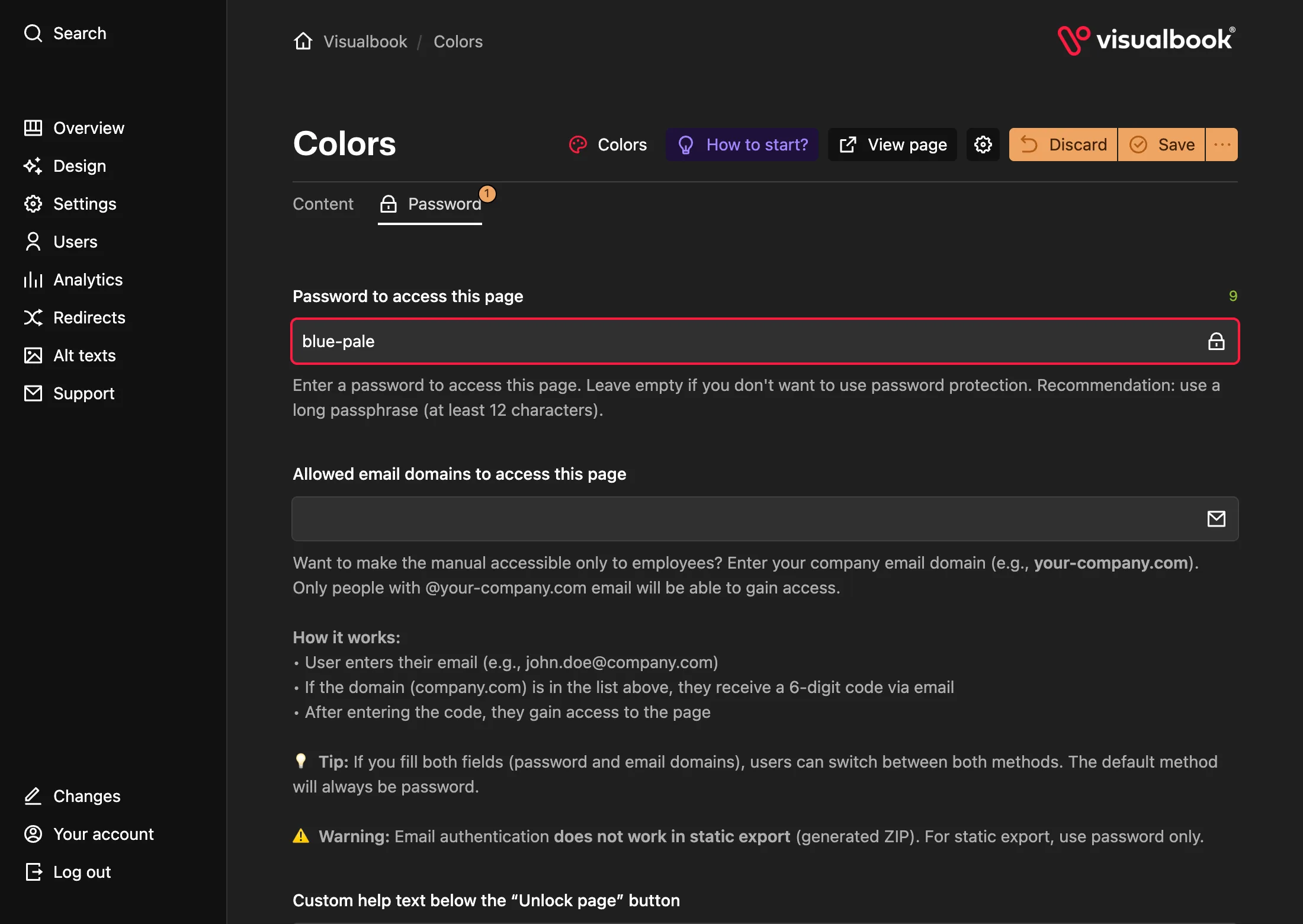
Switch to the Password tab
Every content page of the manual has a Password tab – logos, colors, fonts, custom pages, page groups and brand pages.
Fill in a password, domains, or both
Fill in Password to access this page (at least 12 characters), Allowed email domains to access this page (such as
company.com), or both. One of them is enough.Add a help text
In Custom help text below the “Unlock page” button, say how to get access, for example “Ask the brand manager at brand@company.com for the password.” If you leave it empty, the default text with the contact email appears.
Save your changes
Click Save. The lock applies to all languages of the manual.
How to tell it worked
A lock icon appears next to the page in the panel's page list. Open the page on the site in a private window – instead of the content you see an Enter password field and an Unlock page button.
The lock covers the pages below it
A locked page also locks every page below it. Locking a page group locks the whole group, and locking a brand page in a multibrand manual locks the whole brand. Whoever unlocks the group sees all the pages in it.
What visitors see
The page card on the home page or in a group stays visible, including its image, with a lock icon added. Clicking it shows a form instead of the content. If you set both a password and domains, the password comes first, with an Unlock with email link below it.
The browser remembers the unlock for about two weeks. If you change the password or the domains, the unlock stops working for everyone.
Editors unlock it like visitors
Being signed in to the panel does not unlock the page in the manual – editors enter the password or code too. They can look the password up on the page's Password tab in the panel.
Locked pages in search, exports and AI
- The manual's search finds a locked page only by its title. It shows the page's text, sections and files only after the page is unlocked, so keep anything confidential out of the page title.
- The page is left out of
sitemap.xmlandllms.txt. - The public MCP server and the public AI export leave out the page and everything below it.
Removing the lock
On the Password tab, clear both the password and the domains and save. The page becomes public right away – unless a page above it or the whole manual is locked.