
Create a new page
You create a new page from the Overview or inside a page group. This guide takes you from choosing the type to the card visitors use to find the page.
What you will have
A “Tone of voice” page with its first section and a card on the home page.
Steps
Open the page list
In the panel’s left menu, click Overview. The Content tab shows the Pages list. To create the page inside a group, open the group instead – it has a Pages in this group list.
Click Create new page
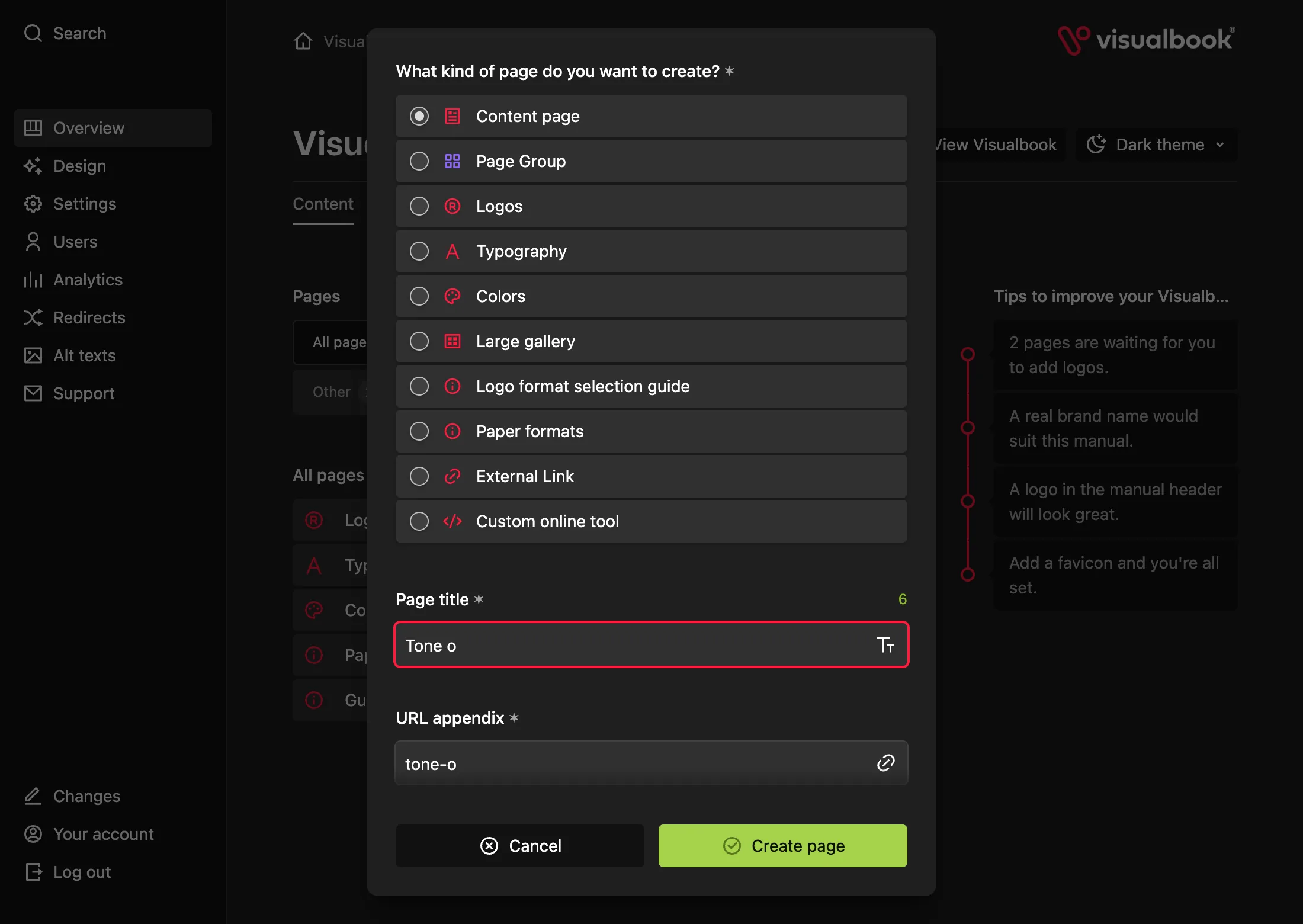
A dialog opens with the question What kind of page do you want to create? and a list of types.
Choose the page type
For free-form content, pick Content page; for logos, fonts and colors, pick the matching type. See Page types for what each type does.
Enter the title
In Page title, type for example “Tone of voice”. The URL appendix fills in automatically (
tone-of-voice) – lowercase, no accents, words joined with hyphens. You can overwrite it.Click Create page
The panel opens the new page. From now on the page is public at its address, but no card leads to it yet.
Add content and the page card
Use Add new section in the Sections on this page list to insert the first section, for example a text. In the right column, fill in Description of this page’s card (200 characters max), leave Card preview image on Image and upload a 700 × 476 px image to Page card image. Click Save.
Put a card on the home page
Open Overview → Main page cards, click Select under Large cards or Small cards, tick the new page and save. See Home page cards for details.
How to tell it worked
On the page, click Open. The page opens in the manual and its card with the description appears on the home page.
External links are created differently
If you pick External Link, the dialog asks for Card name, Card description and Card link. Enter the full address including https:// – without it the link can’t be saved. The button reads Create card.
An external link can only have a small card and opens in a new tab.
Copy an existing page
Need a page with the same layout, such as a second campaign? On the original page, open the Settings menu (cog icon) and choose Duplicate. The dialog lets you turn on Copy files and Copy pages.
What if…
- …there is no Create new page button? With the Multibrand editor role you can only create pages inside brands an administrator assigned to you.
- …you get a nesting error for a group? You can’t create a group inside a group that is itself inside a group. See Page groups.
- …the page doesn’t show on the home page? New pages don’t get a card automatically. Add one in Overview → Main page cards.