
Trial and activation
There are two ways to try Visualbook: a one-hour demo you start right now, or a 14-day trial at your own address, ready within 24 hours. Here is how to start either one and how a trial becomes your live manual.
What you will have
You will have a trial Visualbook at yourbrand.visualbook.pro that you can build, fill with content and show to clients for 14 days.
Steps
Choose the demo or the trial
One-hour demo Trial How to start The Try it now button on visualbook.pro; all you need is an email The configurator – Create a Visualbook Ready in a few seconds within 24 hours Duration exactly 1 hour from creation, cannot be extended 14 days Address a temporary address on tryvisualbook.pro your subdomain, e.g. yourbrand.visualbook.proContent deleted after the hour stays, and is yours once paid Limits no user or language management, no emails, DeepL or static export the full Visualbook, manual protected by the password demoPrice free free; you get an invoice only if you want to continue Just want to look around the panel? Start the demo – see “Start the one-hour demo” further down. For the trial, carry on with the next step.
Open the configurator and pick an edition
On visualbook.pro, click Create a Visualbook. In the edition step, pick DESIGNER, STUDIO or COMPANY depending on who should be invoiced – see Designer, Studio and Company editions. For Designer and Studio, choose how many Visualbooks you want; for Company, choose the company size.
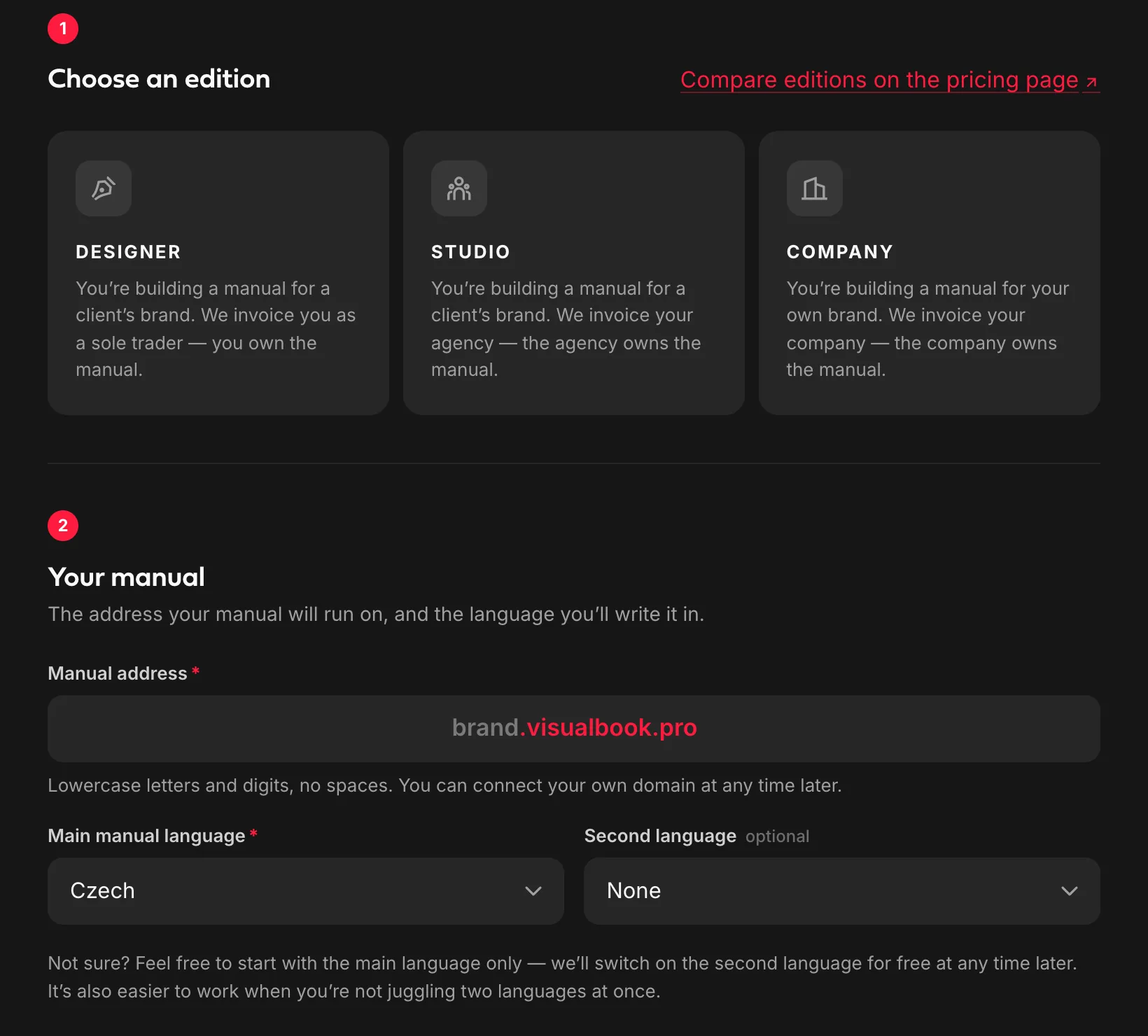
The configurator: edition, address and manual languages. Choose the address and languages
In Manual address, type a subdomain of lowercase letters and digits with no spaces, for example
yourbrand. The manual will then run atyourbrand.visualbook.pro. Pick the Main manual language and, optionally, a Second language. We can also turn on a second language later at no charge, and you can connect your own domain at any time – see Custom domain.Enter who will receive the manual
Fill in the first name, last name and email. We send administrator access to the panel to this address.
Add billing details
Enter your company registration number. For Czech companies, the remaining details can be filled in from the public ARES register. The VAT ID is optional. In the last step you can add a discount code or a note – both optional.
Send the form
Accept the terms and conditions and click Send and create a trial. Sending the form doesn’t order anything and costs nothing. A confirmation with a summary of your configuration arrives by email right away.
How to tell it worked
Within 24 hours you’ll receive an email with the link and your sign-in details. The manual runs at yourbrand.visualbook.pro and opens for visitors after they enter the password demo. Continue with your first sign-in.
Start the one-hour demo
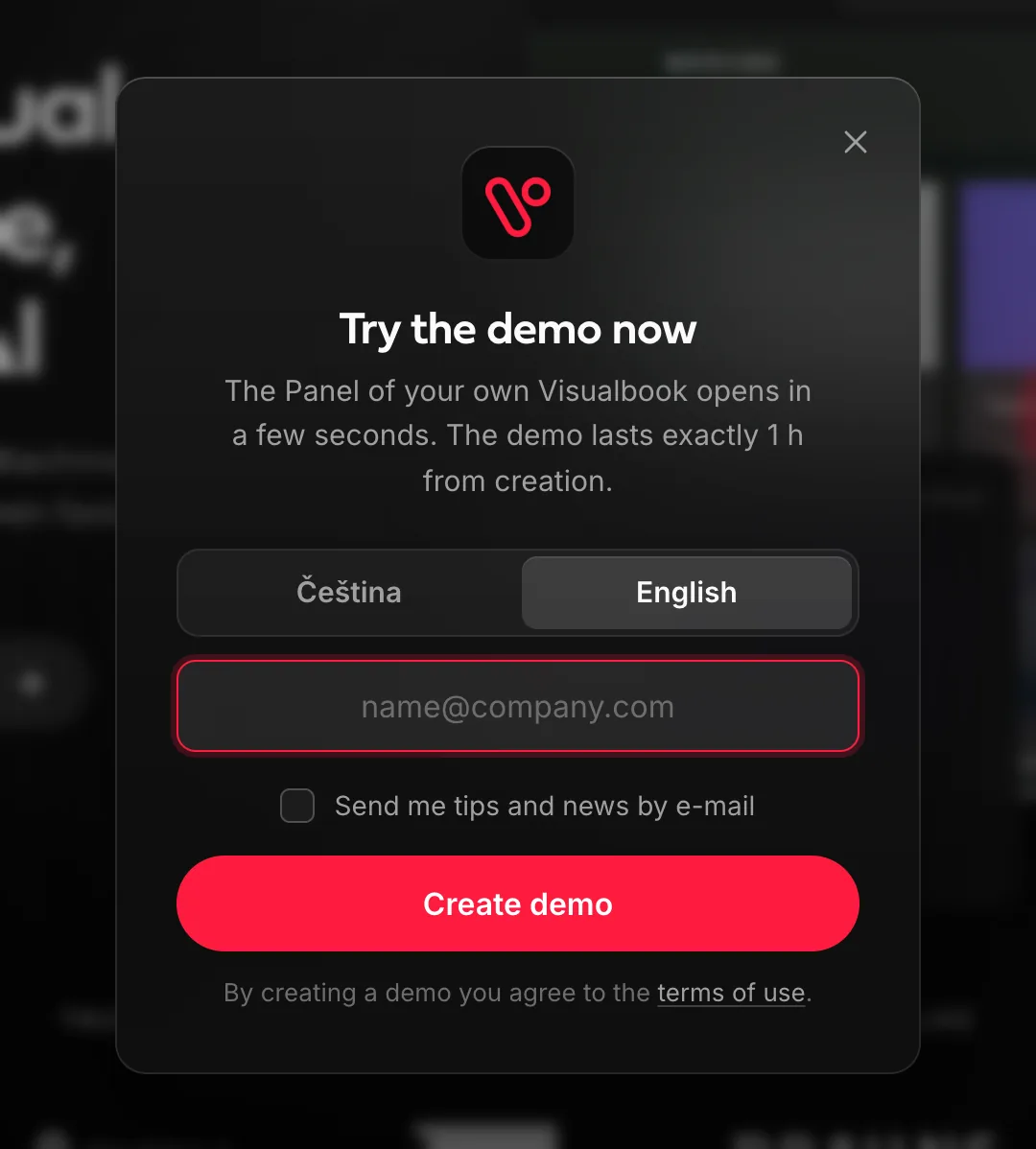
- On visualbook.pro click Try it now.
- In the Try the demo now window choose the Demo language (Čeština or English) and enter Your e-mail.
- Click Create demo. In a few seconds the panel opens and starts the welcome guide on its own.
- At the top of the panel there is a demo bar with a countdown. Expand it to see when the demo ends. You can also delete the demo straight away with Delete demo, or go to Try it for 14 days.
Demo limitations
In the demo you can’t:
- manage users or change languages – the demo runs in a single language,
- translate automatically with DeepL or create a static export,
- send emails – so you can’t try access via a one-time email code,
- change the demo account’s email, password, two-factor authentication or profile picture,
- upload a file larger than 10 MB or have more than 150 pages and sections,
- create an AI export more than three times.
Analytics in the demo shows sample data. You can have at most two demos per email address in each language.
During the trial
The trial Visualbook is fully featured. You can build it, fill it with content, invite colleagues and show it to clients. The whole time, the manual is protected by the password demo – share it with anyone you show the manual to.
Activation after payment
- We get in touch before the trial ends.
- If you want to continue, we issue an invoice due within 14 days.
- Once it’s paid we remove the
demopassword. Content, accounts and the address stay as they are, and the Visualbook is yours for good with no monthly fees.
After activation, decide who should see the manual – you can lock all of it or individual pages. You may also want to connect a custom domain.
If you decide not to continue, we delete the trial project and you pay nothing.