
Files and storage
All manual files are in one overview that shows how much space they take, and you can delete unused ones in one step. Learn how storage works and what to do when it runs low.
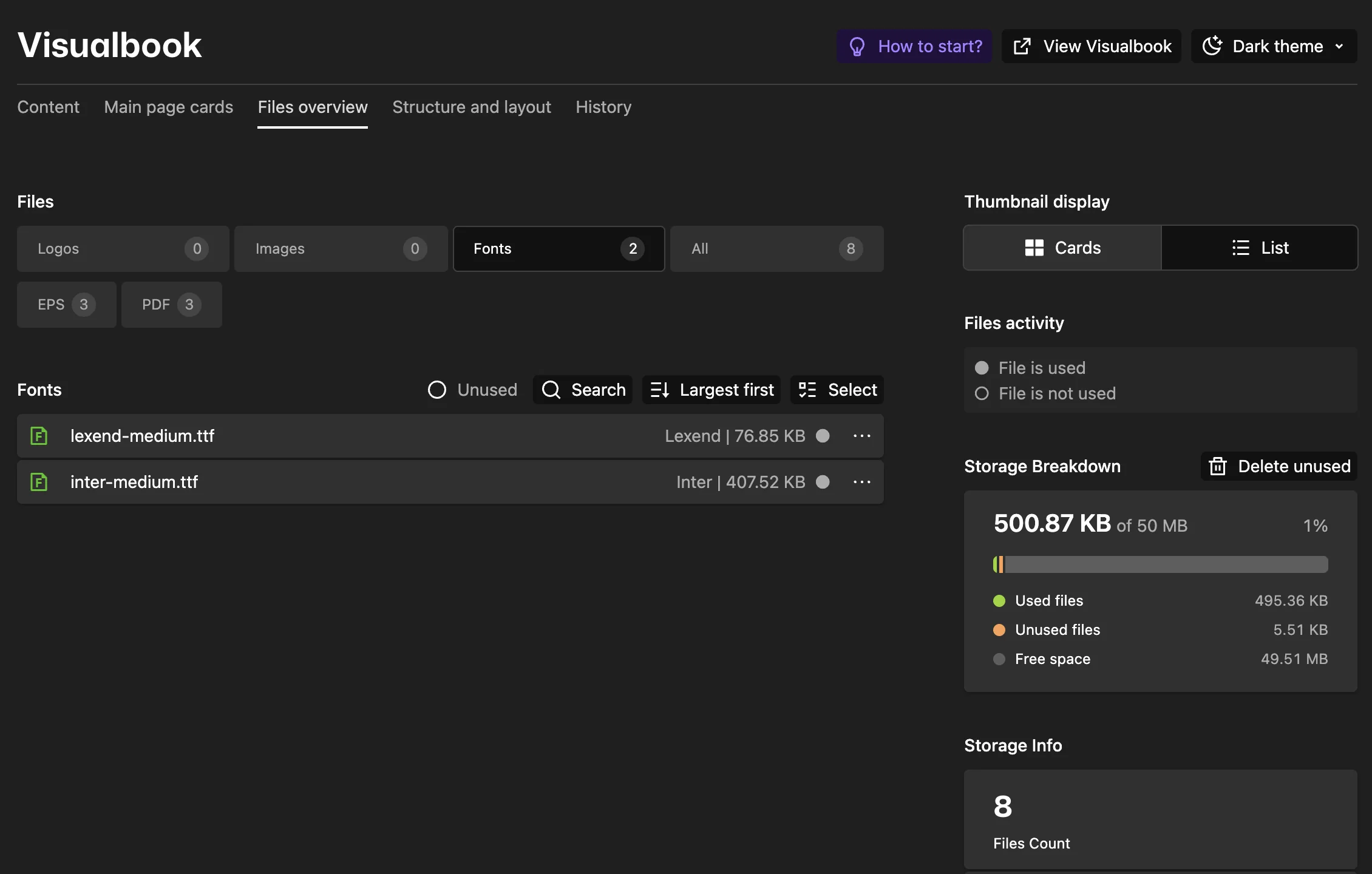
Files overview
In the panel, open Overview and the Files overview tab. Files of the whole manual are sorted into Logos, Images, Fonts, further tabs by extension (such as PDF or ZIP) and All. In multibrand, Shared files have their own list.
- The search field finds a file by name.
- Unused shows only files Visualbook does not use anywhere.
- Select several files to delete them at once.
The Copy link action on a file puts its address on the clipboard. Handy when you want to email the file or link to it from another document.
How much space you have
| Edition | Storage capacity |
|---|---|
| Designer | 100 MB |
| Studio | 200 MB |
| Company | 300 MB |
On the right of the Files overview tab, the Storage Breakdown chart shows Used files, Unused files and Free space. Below it, Storage Info shows Files Count and Storage Capacity.
What happens when space runs out
Visualbook checks free space before uploading or replacing a file and before duplicating a page or section. If the operation would exceed the limit, it stops before saving anything and shows a message, for example “The file cannot be uploaded. It would add 48 MB of files and exceed the storage limit of 200 MB…”. Existing files stay as they were.
To free up space:
- On the Files overview tab, go through Images and All looking for large files – often videos or uncompressed images.
- In the Storage Breakdown chart, click Delete unused. Only files Visualbook does not use anywhere are deleted – typically files that were uploaded but never selected, or were replaced. Everything visible and downloadable in the manual keeps working.
- If you need more space for good, ask support for a higher limit.
Replacing a file with the same name
When you upload a file with the same name as one already on the page, Visualbook replaces the original. Links to it in sections, download buttons and cards stay valid. You can replace acme-logo.svg with a new version in one upload, without selecting it again everywhere it is used.