
Multiple brands in one manual
Multibrand mode turns the home page into a hub of brands, each with its own pages, cards, design and password. It suits a group of companies or a set of product lines.
What you will have
A home page with cards for the subbrands “Novak Bakery” and “Novak Café”, each with its own manual.
Steps
Switch the structure to Multibrand
Open Overview → Structure and layout, set Visualbook structure to Multibrand and click Save.
Default one brand 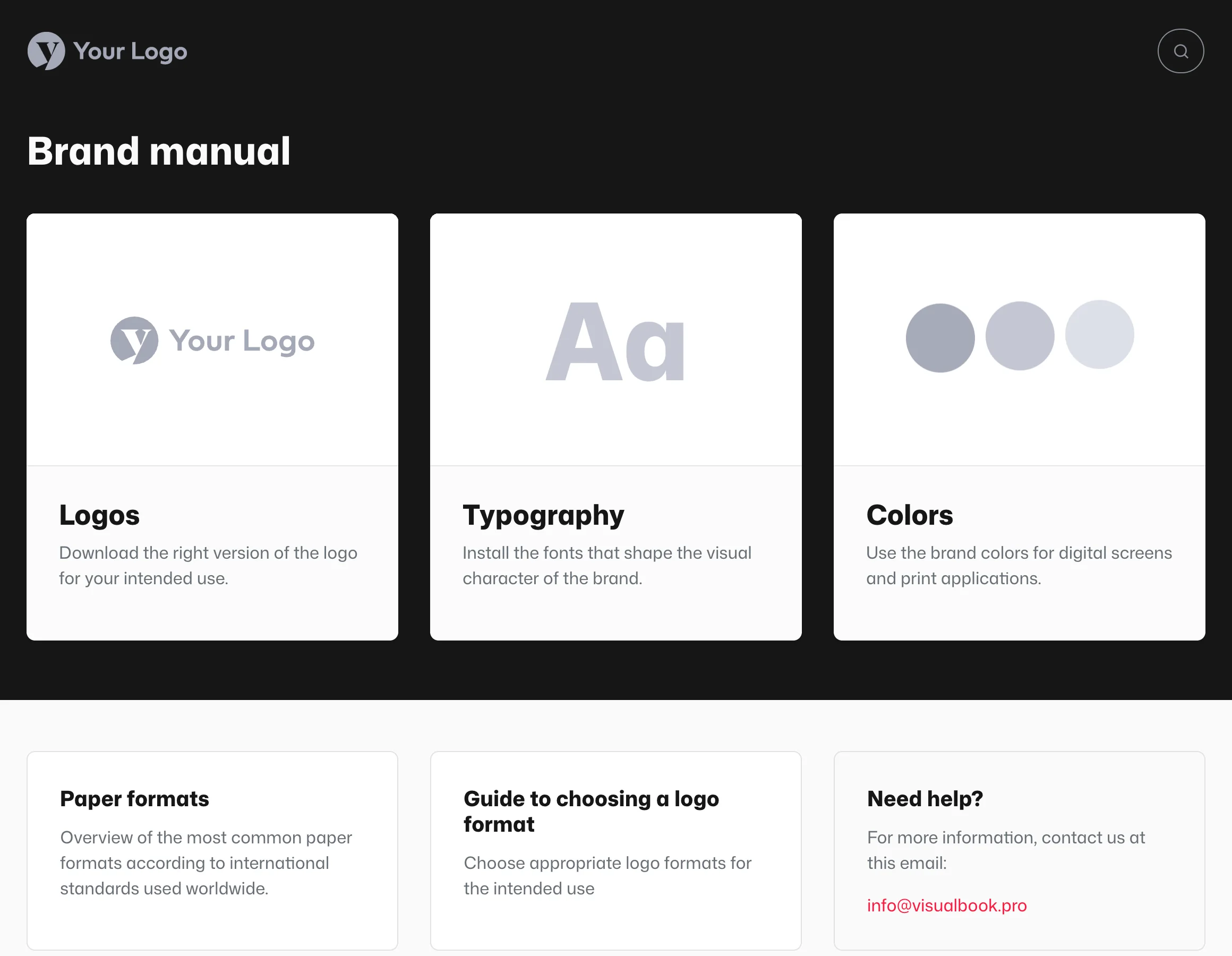
Multibrand a hub of subbrands 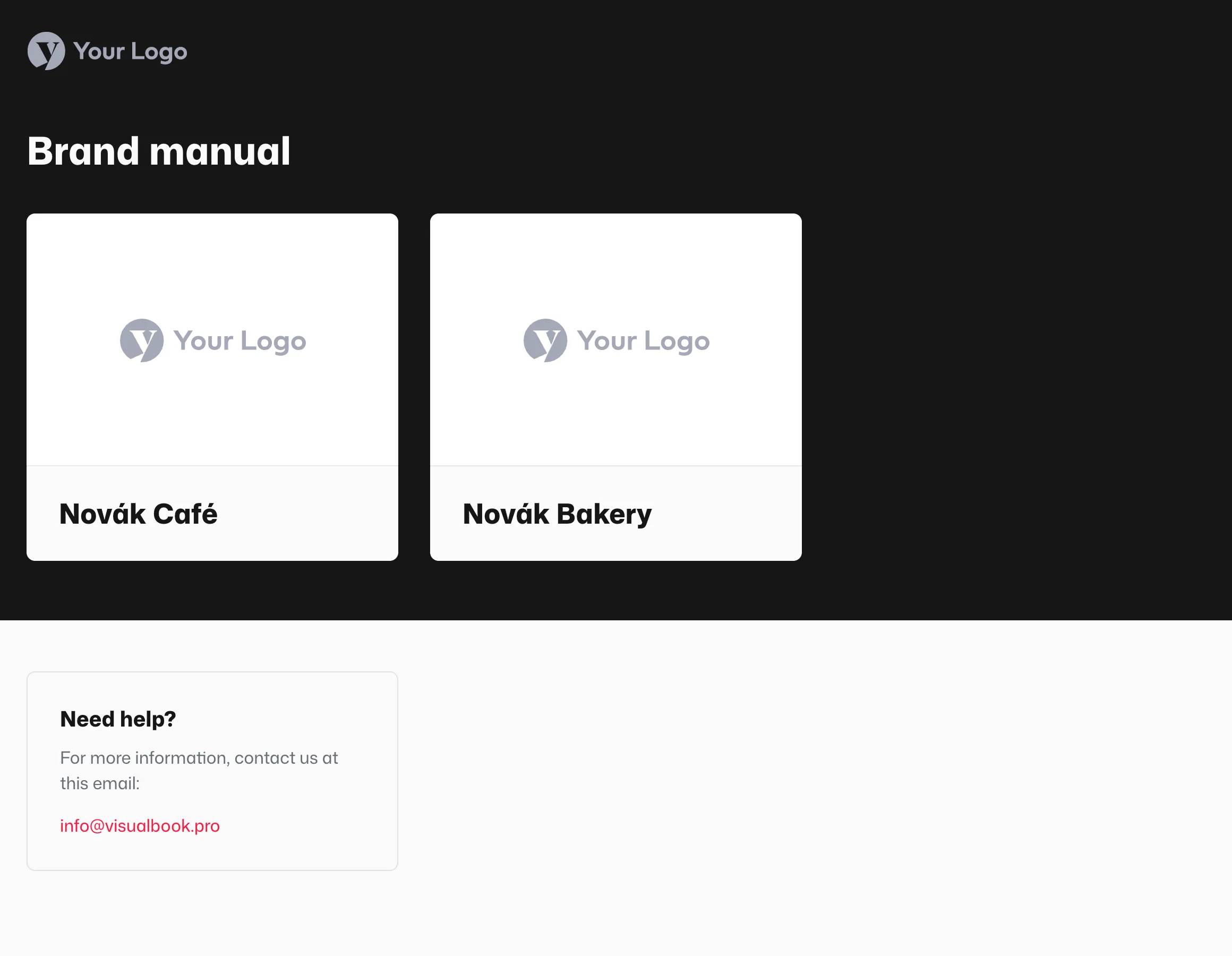
The manual’s home page before and after the switch. Subbrand cards appear on the hub after step 6.
Create a subbrand
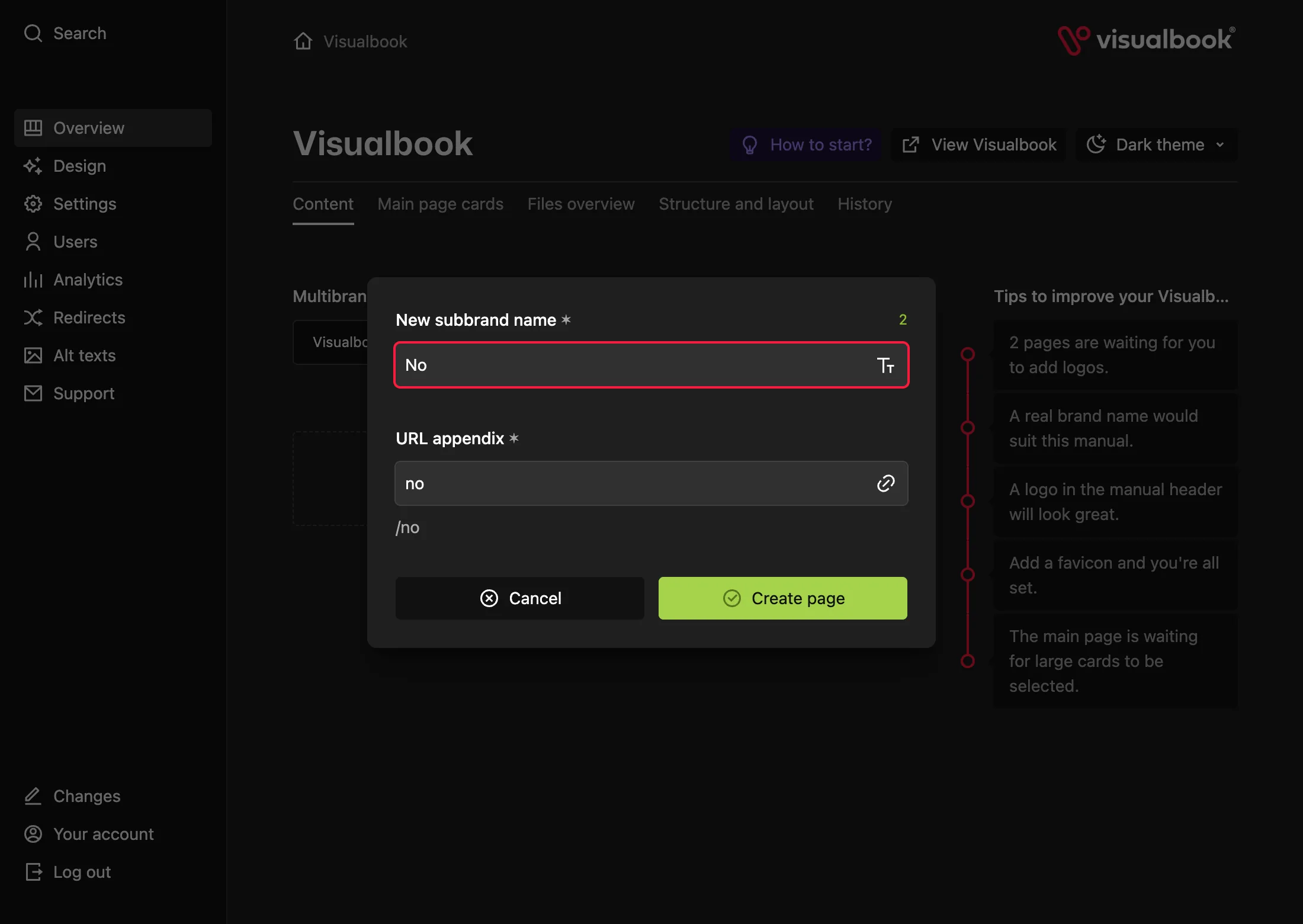
On the Content tab, open Visualbooks and click Create new subbrand. Enter “Novak Café” as the New subbrand name and confirm.
Move existing pages into subbrands
Pages that don’t belong to any subbrand yet are on the Inactive pages tab. Click Select, tick the pages, choose Move (N) and pick the subbrand. Create new pages directly inside the subbrand.
Choose the cards on the subbrand page
In the subbrand, open the Card layout tab and use Select to fill Cards on the main page (the subbrand’s large cards) and Small cards on the brand page (15 cards max each).
Set up the subbrand’s hub card
On the subbrand’s Content tab, on the right, choose Image on the main hub: Logo (then fill in Select logo and Displayed logo variant) or Image at 700 × 476 px. To show text other than the subbrand name on the card, fill in Custom card title.
Put the subbrands on the home page
In Overview → Main page cards, select the subbrands under Cards on the main page (15 max). Multibrand card display sets Small cards or Large cards. Click Save.
How to tell it worked
The home page shows the subbrand cards. Clicking “Novak Café” opens its page with its own cards. A button in the header takes you back to the hub.
A subbrand’s individual design
On a subbrand’s Individual design tab you can override colors, fonts, corner radius, the home page background, the header logo (Individual logo in header) and the favicon. Empty fields use the values from the main Design. The brand colors used as quick picks are shared across the whole manual.
Who edits which subbrand
The Admin role edits every subbrand. A Multibrand editor edits only the subbrands an Admin selects in their profile under Visualbooks and pages this user can edit. See Users and roles.
More options
- Multibrand button text (20 characters max) labels the header button in every subbrand that leads back to the hub. Without it, the button shows the Brand Name from Settings.
- Hide all multibrand names leaves only images on the hub.
- Unique contact email for this Visualbook replaces the main contact email within the subbrand.
- Lock a whole subbrand on its Password tab – see Lock a single page.
- A subbrand’s pages have its name in the address, for example
yourbrand.visualbook.pro/novak-cafe/logos.