
Your first logo manual in ten minutes
Turn a brand-new Visualbook into a manual you can send to colleagues – with your brand name, header color and logo, a favicon, a downloadable logo and a card on the home page.
What you will have
The manual will carry your brand’s name, color and logo. The home page will have a Logos card, and on the logo page a visitor can download your logo as SVG, PDF and PNG.
Steps
Get your files ready
You will need:
- the logo as SVG in two versions – for light and for dark backgrounds, for example
company-logo-light.svgandcompany-logo-dark.svg, - a favicon as a PNG of 32 × 32 or 64 × 64 px,
- the HEX code of the main brand color, for example
#E30613, - optionally the print files of the logo (CMYK PDF and EPS) and a ZIP of the full logo pack.
- the logo as SVG in two versions – for light and for dark backgrounds, for example
Enter the brand name
In the menu on the left, open Settings and the Title and description tab. Type the name into Brand Name, for example
Company, and a short description into Brand Manual Description, for exampleCompany logo manual. Click Save. The name appears in the browser tab and in search engine results, the description as the main heading on the home page.Add the brand color and color the header
Open Design and the Colors tab. In Your Brand Colors, add a row: enter
#E30613in HEX and, for example,Company redin Color Name.Then pick that color in Header Background – your brand colors are offered in every color picker. If the header is dark, set Heading H1 (Title in Header) to a light color. Click Save.
Upload the header logo and the favicon
In Design, go to the Logo and favicon tab. Upload the logo as an SVG to Logo in header and a PNG to Favicon. Fine-tune the size with the Logo size in header slider. Click Save and use View Visualbook to see how the header looks.
Open the logo page
In the menu, open Overview and the Content tab. In the Pages list, click Logos. Under Logos on this page there are two ready-made pages – Logo and Symbol. Open Logo.
Upload the logo SVGs
Leave Logo background mode on Light / Dark background. In Logo on a light background (SVG), click Upload and choose
company-logo-light.svg– or drag the file onto the field. Uploadcompany-logo-dark.svgto Logo on a dark background (SVG) the same way. Adjust the backdrop colors in the Light background of the logo and Dark background of the logo fields. Click Save.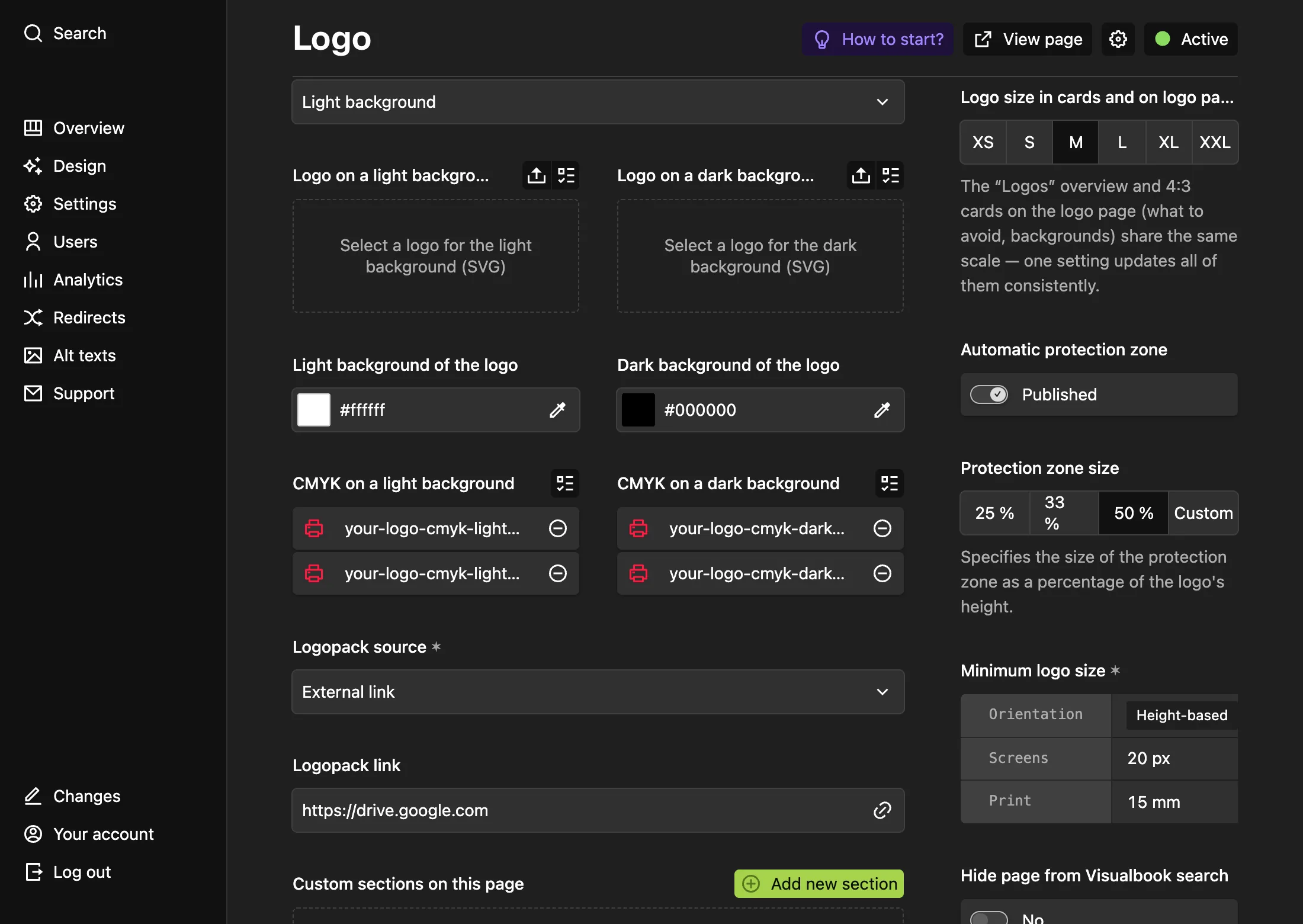
The logo for light and for dark backgrounds. Save once both are uploaded. Add print files and the logo pack
In a new Visualbook, the CMYK on a light background and CMYK on a dark background fields may contain sample files. Replace them with your CMYK PDF and EPS, or remove them.
In Logopack source, choose File download and upload your ZIP to Logo pack (.ZIP), or choose External link and paste a shared folder address into Logopack link. Don’t leave the sample link in place. Click Save.
Decide what to do with the Symbol page
Go back to the Logos page and open Symbol. If you have a symbol, upload it the same way as the logo in step 6. If not, click the Active status in the page header and switch it to Draft – the symbol disappears from the Logos page and is only reachable via a secret link.
Check the home page cards
Open Overview and the Main page cards tab. Under Large cards there is a Logos card – drag it to the first position. The Typography and Colors cards still lead to pages with sample content. Until you fill those pages in, you can remove their cards. Add a card with Select. Click Save.
Walk through the manual as a visitor
Click View Visualbook. On the home page, open the Logos card and then Logo. Switch between the light and dark background and download the logo with the SVG, PDF and PNG buttons – PDF and PNG are generated from your SVG automatically.
How to tell it worked
The header shows your color and logo, the browser tab shows your favicon and the Logos card leads to a page with your logo. The downloaded SVG is your file. In Overview, Tips to improve your Visualbook no longer warns about a missing SVG on the Logo page.
What if the SVG upload fails
| Message | What to do |
|---|---|
| The uploaded logo contains a protection zone (empty space around the graphic)… | In your design tool, shrink the artboard to fit the artwork and export the SVG again. You then set the clear space in Visualbook. |
| The logo SVG contains an embedded raster image… | The file is a PNG wrapped in an SVG. Export the logo from the vector source (paths, not an image). |
The password in a trial
A trial manual is protected by the password demo. Enter it when you browse the manual as a visitor in another browser. See Trial and activation.
What’s next
- On the Logo usage rules tab, pick forbidden logo modifications under Things to avoid – see Logo rules.
- Set the clear space and minimum size of the logo – see Logos.
- Fill in the Fonts and Colors pages and put their cards back on the home page.
- Decide who should see the manual – How access works.
- Invite colleagues – Invite an editor.