
Downloadable logo formats
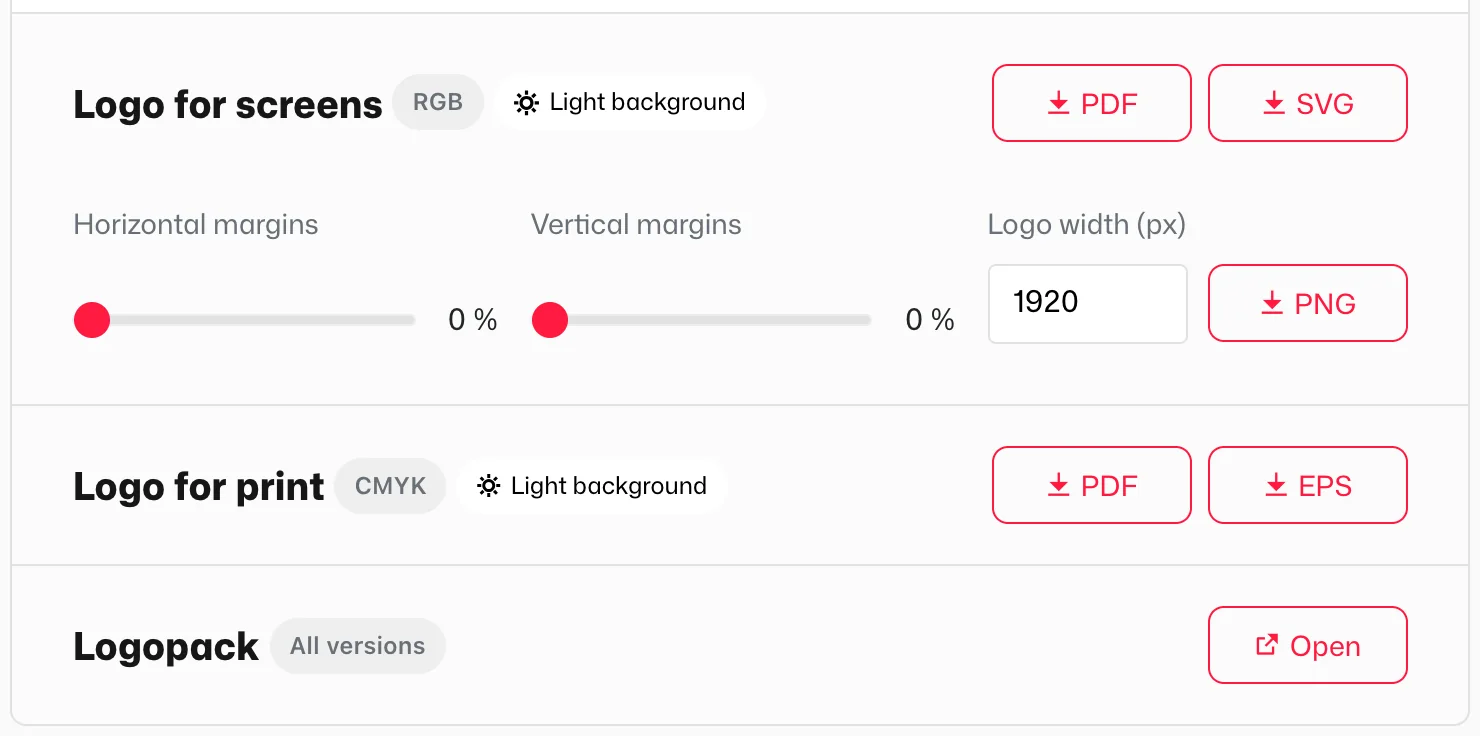
On a logo page, visitors can download SVG, PNG and PDF for screens, CMYK PDF and EPS for print, and the logo pack. This page shows where each file comes from and what it’s for.
What a visitor downloads
On a logo page, each version (light background, dark background or universal) has its own rows of buttons. Visualbook generates most files from the uploaded SVG; you supply the print files.
| Row and format | Color mode | Where it comes from | Use it for |
|---|---|---|---|
| Logo for screens – SVG | RGB | The uploaded SVG | Web, apps and anywhere the logo must stay sharp at any size. |
| Logo for screens – PNG | RGB | Generated in the browser from the SVG | Slides, documents, tools without SVG support. Transparent background. |
| Logo for screens – PDF | RGB | Generated in the browser from the SVG | A vector file for screens that opens in any PDF viewer. Not meant for print. |
| Logo for print – PDF | CMYK | The file uploaded to CMYK on a light / dark background | Professional print: business cards, flyers, brochures. |
| Logo for print – EPS | CMYK | The file uploaded to the same field | Print shops and manufacturers (signage, vehicle wraps, production). |
| All versions – ZIP or link | depends on contents | The Logo pack (.ZIP) or Logopack link field | The whole set at once, including formats Visualbook doesn’t generate. |
PNG download settings
Before downloading a PNG, a visitor sets:
- Logo width (px) – both the default and the maximum are 1920 px.
- Horizontal margins and Vertical margins – transparent space around the logo as a percentage of its height. With the automatic protection zone on, the slider stops at the zone size, for example 50 %.
JPG, AI and AFDESIGN formats
Visualbook doesn’t generate these formats from the SVG. If partners need them (a JPG for a trademark application, say, or the Illustrator source for a designer), add them to the logo pack. The Logopack Studio app builds a pack for both screen and print.
Helping visitors choose a format
If visitors aren’t sure which format to use, you can help them in two ways:
- On the logo page. In the right column, turn on Logo version selection. A collapsible Which logo format should I use? box appears below the buttons, with a table of properties for PDF (CMYK), EPS, PDF (RGB), SVG and PNG.
- On a separate page. Create a page of the Logo format selection guide type. Its content is generated automatically: an overview of the formats, their properties and a table by use (web design, presentations, print…). Show optional file formats adds EPS, JPG, AI or AFDESIGN to the default SVG, PDF and PNG.
Downloads for selected people only
The download buttons on a logo page have no password of their own – they’re protected by locking the whole logo page; see Lock a single page. To lock just one file, such as the print PDF, put it in a Files for download section and lock it as described in Lock downloadable files.