
Page types
When you create a page, you choose from ten types. The table shows what each one is for, what it contains and which card it can have on the home page.
Types at a glance
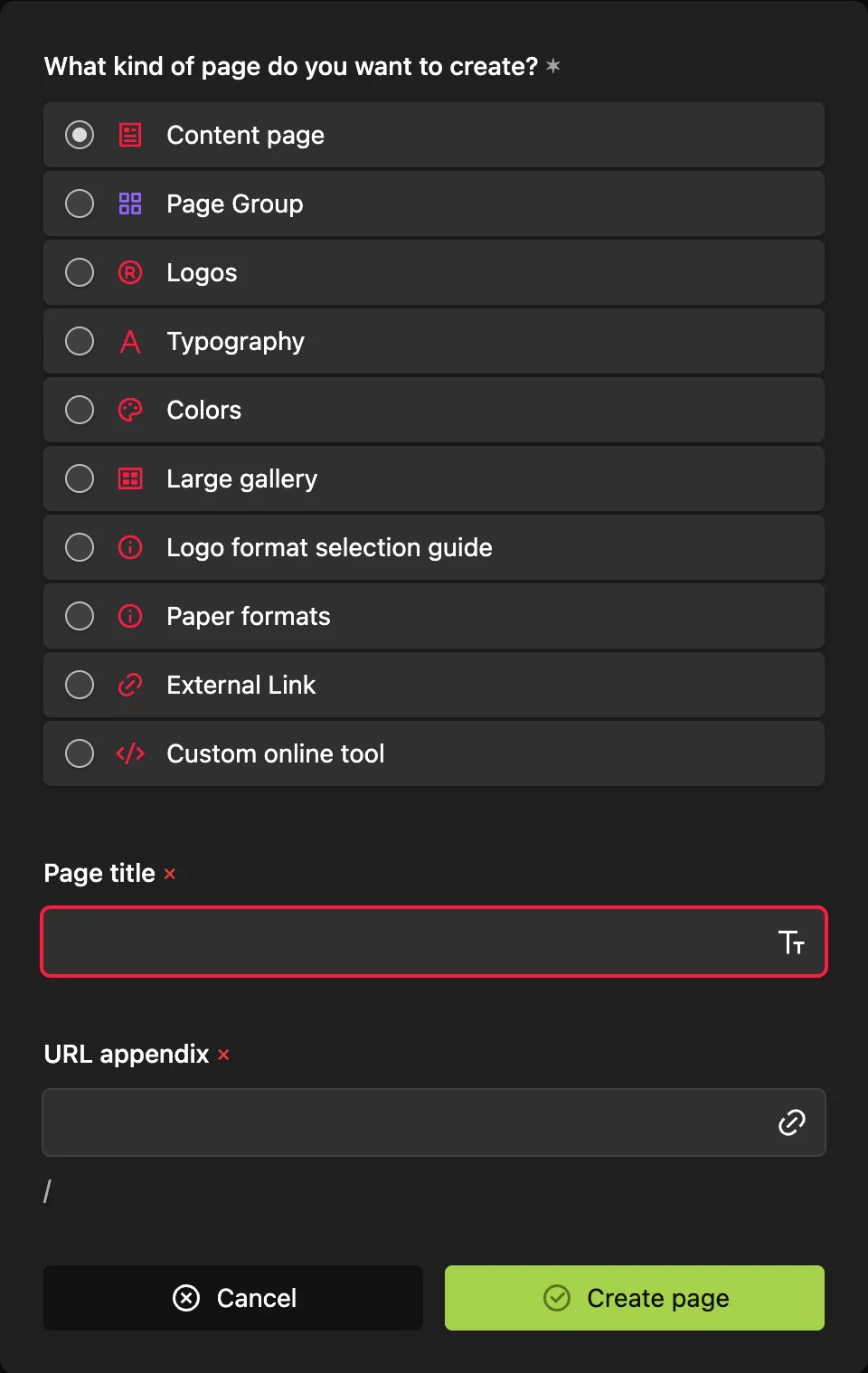
| Type in the panel | What it is for | Content | Home page card |
|---|---|---|---|
| Content page | Any topic: tone of voice, photography, brand applications | Sections you add yourself | Large or small |
| Page Group | Folder for several related pages | Its own large and small cards | Large or small |
| Logos | Overview of the brand’s logos; each logo has a detail page with download formats | Logos and sections | Large only |
| Typography | Brand fonts with style samples | Fonts and sections | Large only |
| Colors | The brand color palette | Color sections (swatch, palette, gradient, contrast) and other sections | Large only |
| Large gallery | Image gallery, for example photography style | Galleries | Large or small |
| Logo format selection guide | Helps people pick the right logo file format | Generated automatically; besides SVG, PDF and PNG you can add EPS, JPG, AI and AFDESIGN | Small only |
| Paper formats | Overview of paper formats | Generated automatically | Small only |
| External Link | A card that leads to another website, such as a photo bank | The link address, optionally a password or email domains | Small only |
| Custom online tool | Your own HTML tool inside the manual, such as a business card generator | Tool files (HTML, CSS, JavaScript, images, fonts) | Large or small |
How the panel sorts types
The page list in Overview → Content has four tabs: All pages, Content pages, Logos, fonts & colors and Other (groups, galleries, formats, external links and tools). Each page also shows its type as a label in the page header.
What the types have in common
- Apart from external links and the two generated types, every page has its card settings in the right column: Card preview image and Description of this page’s card.
- Most types have a Hide page from Visualbook search toggle and a Password tab for locking the page.
- Content page, Large gallery, Colors and Typography have a Generate content on the page? toggle that adds an “On this page” list above the sections. If sidebar navigation is on, the list is not shown.